

How to easily transfer Spotify playlists to Apple Music? To find out the answer, please stay with us and read this article.
In the age of digital music consumption, music streaming services like Spotify and Apple Music have revolutionized the way we listen to music. With a vast library of songs at our fingertips, these platforms have become increasingly popular among music lovers worldwide. However, switching between these two services can be a daunting task, such as transferring your Spotify playlists to Apple Music. This is where Spotify to Apple Music playlist converters come in handy.

Why Switch from Spotify to Apple Music?
Both Spotify and Apple Music platforms have become the go-to choice for music enthusiasts. However, despite their extensive libraries, users may find themselves wanting to switch between platforms for various reasons.
One common challenge that users face when moving from Spotify to Apple Music (or vice versa) is transferring their playlists. Playlists are often personalized collections of songs that hold sentimental value or are carefully curated based on various moods or genres. Manually recreating these playlists on a new platform can be time-consuming and tedious, which is why Spotify to Apple Music playlist converters have gained popularity.
Spotify vs. Apple Music: What Drives Users to Switch?
- Music Catalog and Exclusive Releases
While Spotify excels in personalized playlists like “Discover Weekly,” Apple Music often scores with exclusive albums and artist collaborations.
- Device Ecosystem
Apple Music seamlessly integrates with the Apple ecosystem, making it an appealing option for iPhone, iPad, and Mac users.
- Audio Quality
With lossless audio and spatial audio, Apple Music is attractive to audiophiles seeking premium sound quality
Switching platforms means risking your hard-earned playlists. That’s where conversion tools come in.
Top Spotify to Apple Music Playlist Transfer Tools (Updated for 2026)
In 2026, you have two practical paths: use Apple Music’s built-in transfer (fastest for most users), or use third-party transfer tools if you need advanced control, exports, or cross-platform syncing.
1) Apple Music Built-In Transfer (powered by a third party)
Best for: most users who just want to move self-created playlists quickly inside Apple Music settings.
2) TuneMyMusic (web)
Best for: quick one-time transfers, simple UI, and transferring multiple playlists in bulk.
3) Soundiiz (web)
Best for: power users who want more control (favorites, metadata handling, and multi-service management).
4) SongShift (iOS)
Best for: iPhone users who prefer an app workflow and want ongoing library/playlist transfer options.
5) FreeYourMusic (multi-platform app)
Best for: users who want a dedicated desktop/mobile app experience across Windows/macOS/iOS/Android, especially for larger libraries.
1. TuneMyMusic
TuneMyMusic is a popular online playlist converter that supports transferring playlists between various music streaming platforms, including Spotify and Apple Music. It offers a simple and user-friendly interface, making it easy for users to convert their playlists.

Quick conversion process, supports multiple platforms, free to use.

Limited customization options, may not transfer all metadata accurately.
2. Soundiiz
Soundiiz is a versatile playlist conversion tool that allows users to transfer playlists, tracks, and albums between different music services. It offers advanced customization options and supports a wide range of platforms.
Extensive customization options, supports multiple platforms, accurate metadata transfer.
Subscription fee for premium features, may be overwhelming for beginners.
3. Stamp
Stamp is a user-friendly playlist converter that enables users to transfer playlists between various music streaming services, including Spotify and Apple Music. It offers a straightforward conversion process and supports bulk transfers.
Simple interface, supports bulk transfers, affordable pricing.
Limited customization options, occasional glitches during conversion.
4. SongShift
SongShift is a popular app available on the App Store that allows users to transfer playlists between different music services, including Spotify and Apple Music. It offers a seamless conversion process and supports real-time syncing.
Real-time syncing, intuitive interface, offline conversion feature.
Limited customization options, in-app purchases for premium features.
5. STAMP Premium
STAMP Premium is a premium version of the Stamp app that offers additional features and customization options for playlist conversion. It allows users to transfer playlists between various music services with enhanced control over the transfer process.
Advanced customization options, real-time syncing, offline conversion feature.
Subscription fee required, may be too advanced for casual users.
Criteria for choosing the best converters
When it comes to choosing a Spotify to Apple Music playlist converter, there are several factors to consider to ensure a seamless and efficient conversion process. Some key criteria to keep in mind include:
- Ease of use
The converter should be user-friendly and intuitive, allowing users to easily transfer their playlists without any technical hurdles.
- Speed of conversion
The converter should be efficient in converting playlists quickly, especially for users with a large number of songs in their playlists.
- Reliability
The converter should accurately transfer songs and metadata from Spotify to Apple Music, ensuring that the playlists remain intact.
- Cost
While some converters may be free to use, others may come with a subscription fee or one-time payment. Users should consider their budget constraints when choosing a converter.
- User reviews and ratings
It is important to read user reviews and ratings of the converters to gauge their effectiveness and reliability.
Method Recommended in 2026: Transfer Spotify Playlists Using Apple Music’s Built-In Transfer Tool
Apple Music now offers a built-in option to transfer your library and playlists from other music services (including Spotify) directly inside Apple Music settings. This feature requires an active Apple Music subscription and Sync Library turned on, and the transfer is provided by a third-party partner.
How to start the transfer (iPhone/iPad):
1) Go to Settings > Apps > Music.
2) Tap “Transfer Music from Other Music Services.”
3) Choose Spotify, then sign in.
4) Select what you want to transfer (playlists, albums, songs — options vary by service).
5) Tap “Add to Library” and wait for matching to complete.
Tip: If some tracks can’t be matched, Apple Music will ask you to review alternatives. Complete the review in time to finish the transfer.
How to Transfer Spotify Playlist to Apple Music with TuneMyMusic
Using a Spotify to Apple Music playlist converter is relatively easy, regardless of the specific tool you choose. Among all these Spotify playlist to Apple Music converters, TuneMyMusic ranks the top.
Here is a step-by-step guide on how to convert your playlists from Spotify to Apple Music:
That's it! You can now enjoy your favorite playlist on Apple Music.
For a seamless conversion process, ensure you have a stable internet connection to avoid interruptions, double-check the conversion settings to accurately transfer your playlist, and back up your playlists on both Spotify and Apple Music beforehand as a precaution.
Extra tip: Download Spotify playlists offline and upload to Apple Music
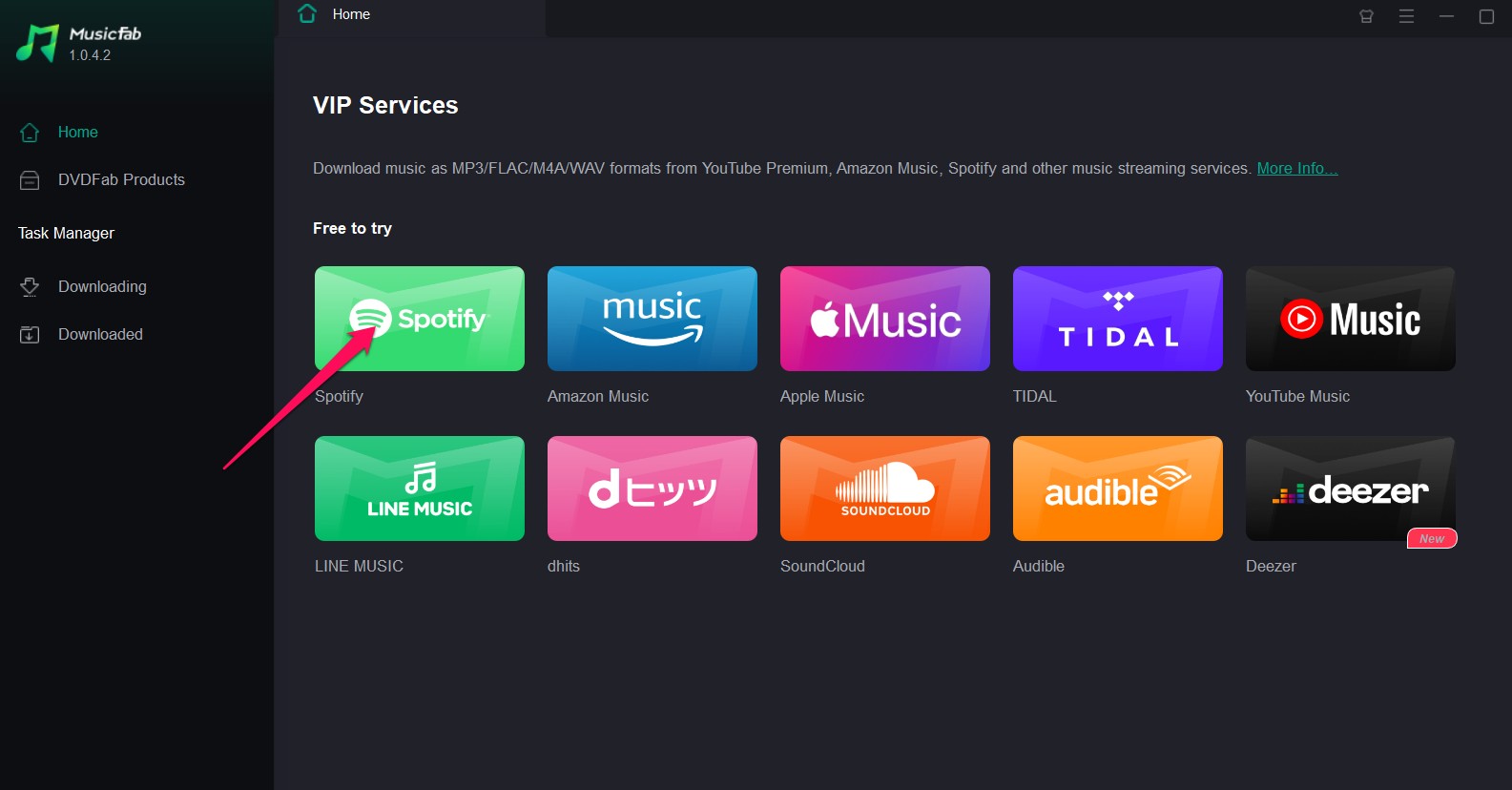
In addition to the above-mentioned tools to transfer Spotify playlists to Apple Music, you also try some other ways, like downloading Spotify playlists offline first and then upload them to your Apple Music account. This method is more trustworthy and safe than the Spotify playlists to Apple Music converters. If you prefer this method, then you may try MusicFab Spotify Converter first to download your preferred Spotify playlists offline.

- Save Spotify music as MP3, FLAC, WAV, M4A or OPUS format.
- Download Spotify songs/playlists/albums/podcasts in batch
- Remove Spotify ads for free users.
- Save Subtitles as External SRT Files.
Unfamiliar with MusicFab? Not worry. Here is a brief introduction to help you know it better.
MusicFab Spotify Converter can directly download playlists/albums/podcasts from Spotify with a super-fast speed and save Spotify to MP3, FLAC, WAV or M4A format for compatible playing. This program is widely used by users, especially those who need to download tracks offline from Spotify. It is 100% clean and trustworthy and offers a great customer service.
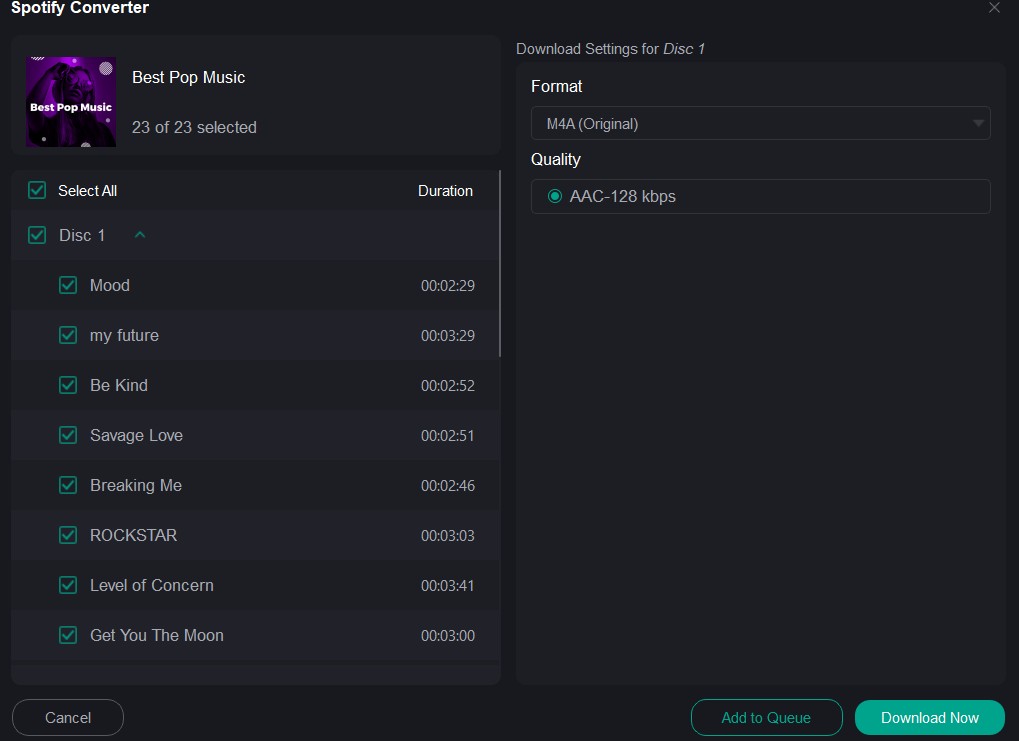
Steps to Download and Upload Using MusicFab:
FAQs
Will the conversion process affect the quality of my playlists?
As long as the converter is reliable and accurate, the quality of your playlists should be unaffected during the conversion process.
AAre there any limitations to the number of songs or playlists I can transfer?
Some converters may have limitations on the number of songs or playlists that can be transferred, so it's important to check the platform's guidelines before initiating the conversion process.
AConclusion
In conclusion, Spotify to Apple Music playlist converters provide a convenient solution for users looking to transfer Spotify playlists to Apple Music or vice versa. With a variety of options available, users can choose a converter that best suits their needs based on factors such as ease of use, speed of conversion, and customization options. By considering these criteria and following a step-by-step guide, users can seamlessly convert their playlists from Spotify to Apple Music without losing any metadata or songs.
For the best overall experience, Soundiiz is recommended as the top converter due to its advanced customization options, accurate metadata transfer, and wide range of platform support. However, users are encouraged to explore the other converters mentioned in this article to find the one that best fits their preferences and requirements.

![10 Best YouTube to WAV Converters 2025 [Safe & Fast]](https://c.musicfab.org/uploads/images/2024-07/17206996344468865-25133daf28c92d3ac9abe86a67fddcf8.)
