
Let's learn how to use Audible offline and listen to Audible offline on Windows, Mac, or mobile phones for convenience to access your favorite audiobooks on computers and mobile devices.
Audible is a renowned membership service with the world's largest collection of audiobooks and podcasts. More and more people are turning to Audible due to its exclusive Originals and extensive content library. However, many people like to consume audiobooks at their own pace without relying on the internet or WiFi.
Can You Listen to Audible Offline?
Yes, Audible works offline in 2026, as long as you download your titles to the device first. You don’t need an active membership to listen offline to titles you’ve purchased (or otherwise own in your Library).
However, access to Plus Catalog titles is tied to your membership. If your subscription ends, you may lose access to Plus Catalog items even if they were previously downloaded.
How To Listen To Audible Offline On Different Devices: Recommended Ways
Fortunately, the Audible app is cross-platform compatible. Audible Plus and Premium users have the privilege of purchasing and downloading Audible books. By activating the Audible Offline Mode, you can easily engage in a smooth offline listening experience at your convenience.
Learn how to use Audible offline with a detailed guide to different ways to use it on iOS, Android, Windows, and Mac computers.
Way 1 - On iPhone/Android
Step 1: Open the Audible app on the respective device (iOS/Android).
Step 2: Android users can move to the navigation bar at the bottom. Find and click the Library tab. Then click All and select All Titles at the top.
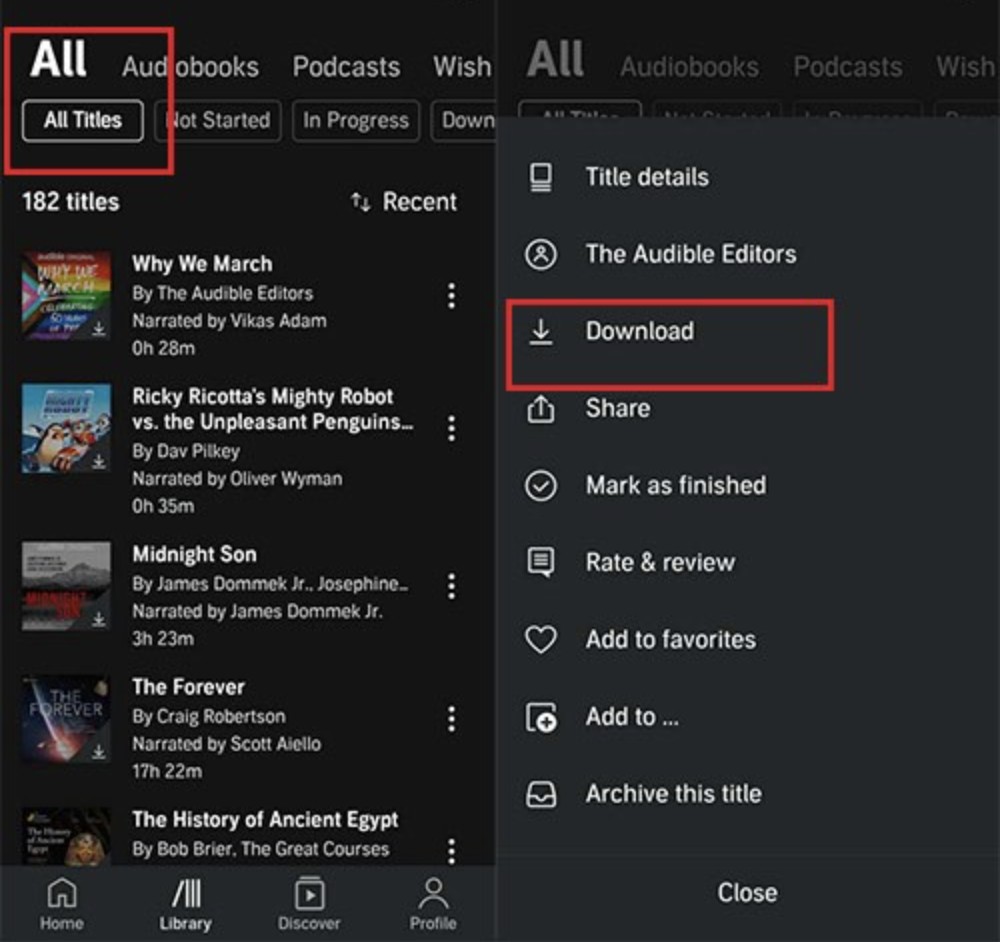
For iOS users: Click the Menu tab (a hamburger menu with three horizontal lines) and select Library from the left panel that pops up. Next to My Library, click the little inverted triangle icon, and then click Cloud from the dropdown list. Select all the desired Audible books to download and listen to offline.
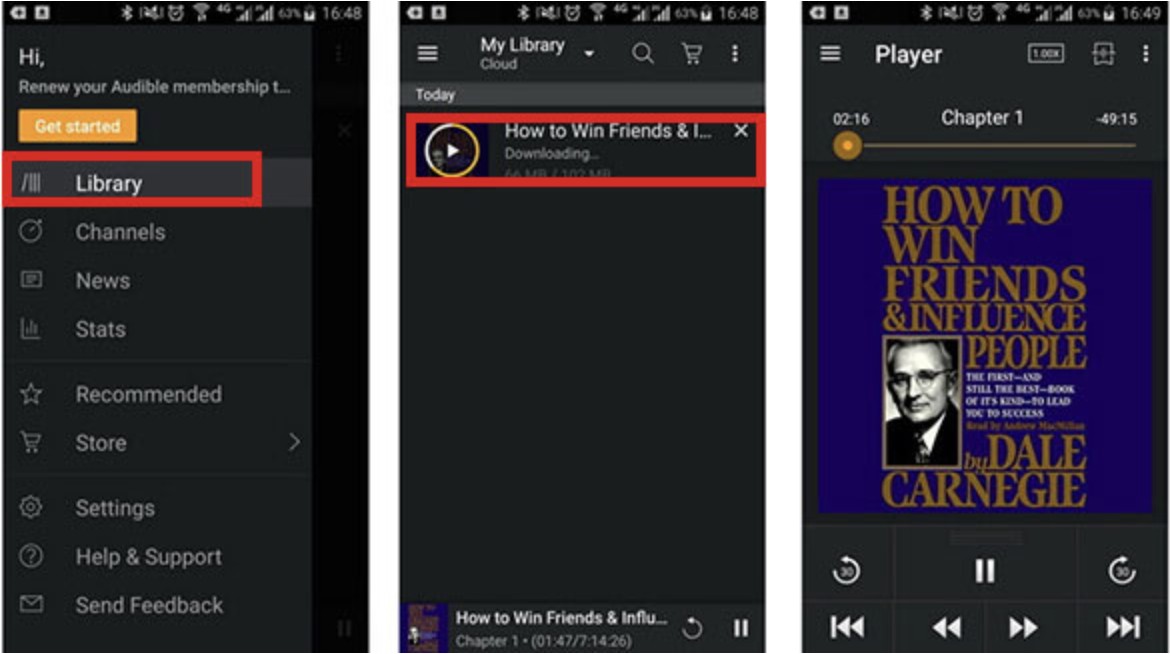
Step 3: Now, tap Cover Art to start the downloading process. Similarly, Android users can click the Cover art of their favorite titles. Alternatively, they can click the three dots on the right and select Download from the pop-up list to start downloading.
Step 4: Finally, you'll get the downloaded Audible audiobooks. Just visit the Audible Library in the app and get to the Downloaded section. Pick any downloaded Audible audiobook and click to listen to it offline on your device.
Limitations
- Technical issues resulting in crashes and playback errors, interface errors, and limited features, with a lack of control
- Poor user experience due to decreased reliability, lack of customization, and a complex process to navigate the series
- The Audible app has bugs and glitches with an unreliable server
Way 2 - On Windows PC
- Via Windows Media Player/iTunes
Before starting the process, ensure you have downloaded the Audible audiobooks to your Windows computer from the official Audible website.
Step 1: Download and launch the Audible Download Manager.
Step 2: Click the Option tab in the upper-left corner and select Activate PC from the dropdown list. Sign up for your Audible account; a new window will confirm successful activation.
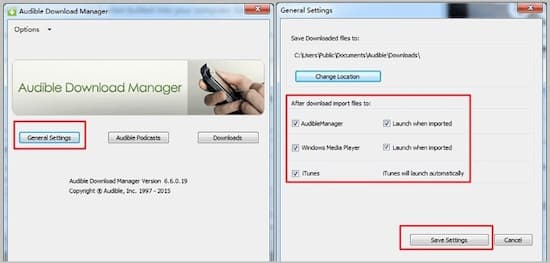
Step 3: Now, select Options again. Select Import Audible Titles… from the dropdown menu. Next, click the Import into iTunes and Windows Media Player Library icon.
Step 4: Click OK to confirm your action. That's it. You can now play and listen to Audible offline on either iTunes or Windows Media Player as and when needed.
Limitations
- Outdated for Windows (discontinued development)
- DRM restrictions and a less-friendly UI
- Potential compatibility issues
Way 3 - On Mac Computers
- Via Apple Books
Step 1: Look for your desired Audible book for offline listening. Right-click on your book and choose Open with. Select the Book (default) button.
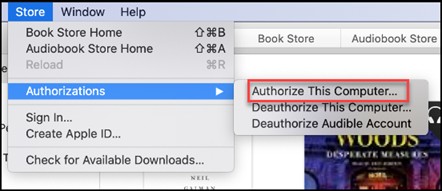
Step 2: Ensure that you are authorizing your computer. Just fill in your Audible account. A pop-up window will appear. Click Yes and select Activate Now.
That's it. All Audible books will be imported into the Apple Books app, and you can listen to them at any time.
Limitations
- Works only on macOS 10.15 Catalina and newer versions
- Limited cross-platform availability with no subscription service
- DRM restrictions with limited customization and no Cloud backup
- Via iTunes
Step 1: Visit the Audible website and log in to your account.

Step 2: Search for the title you would like to download. Click Download.
Step 3: Open the downloaded audiobooks with iTunes. Click Yes and fill in the account details to authorize your computer.
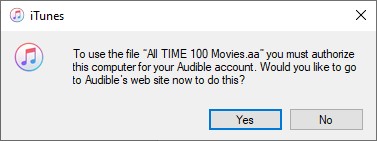
Step 4: Now, use iTunes to activate the Audible offline mode and listen to your audiobooks without the internet at any time.
Limitations
- Works only on macOS 10.14 and earlier versions
- Limited playback features
- No direct Audible interaction
Bonus: How to Listen to Audible Books Offline Anywhere - MusicFab Audible Converter
Now, we have seen various ways on how to use Audible offline. However, their limitations may compel audiobook lovers to try a more reputable option for a seamless listening experience. Here's where MusicFab Audible Converter can come to the rescue! It can download Audible books in various formats while preserving ID3 metadata for better navigation.
MusicFab Audible Converter
TrustPilot Ratings: 4.5/5
Key Features and Highlights
- Save Audible book titles and podcasts offline to OPUS, WAV, M4A, FLAC, or MP3 format
- Preserves ID3 metadata and keeps chapters for easy navigation
- Speedy batch conversion with 20x speed for processing multiple titles simultaneously and saving time
How to Listen to Audible Offline with MusicFab Audible Converter
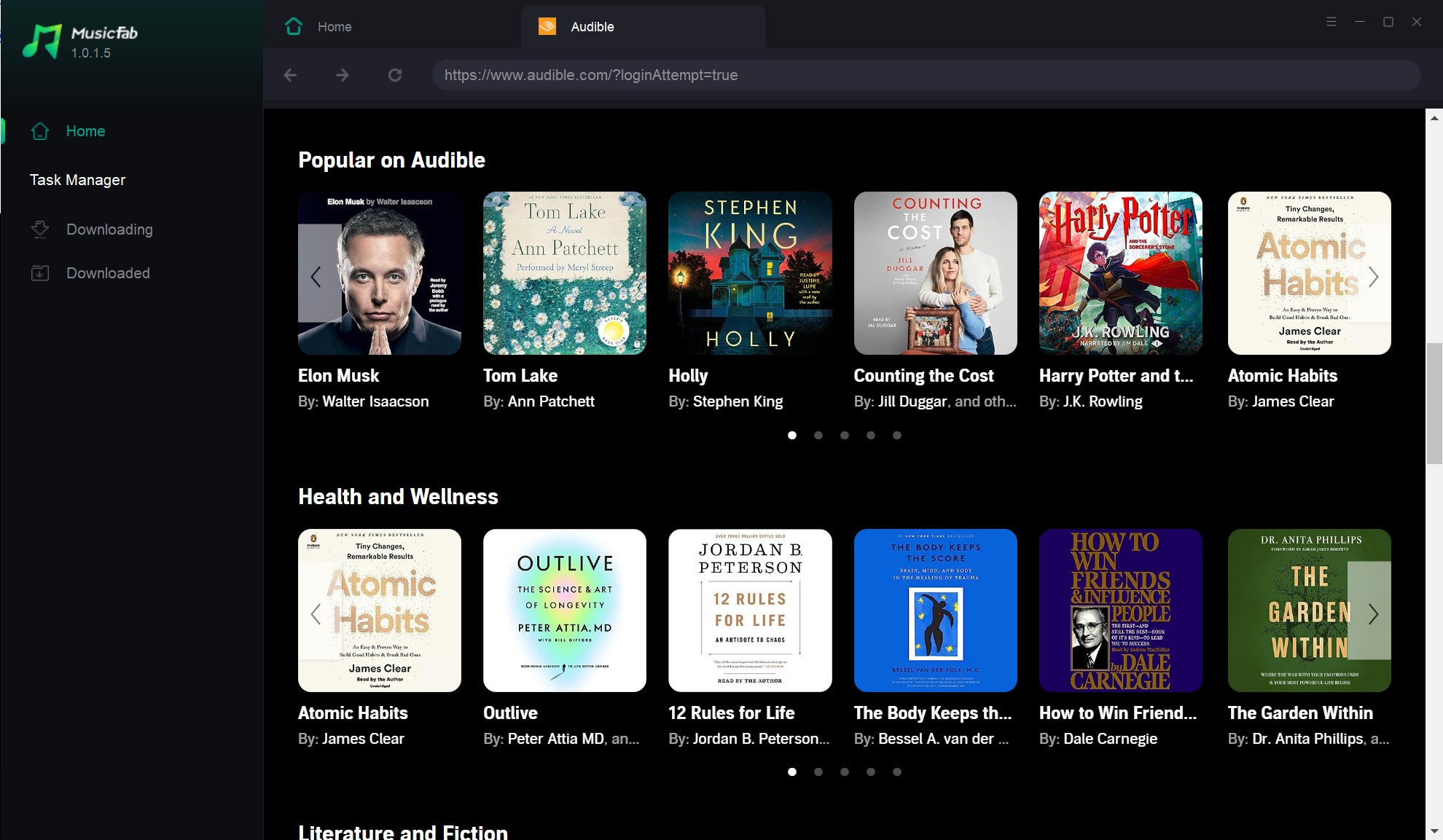
Step 1: Launch MusicFab and search for the Audible icon. Sign in to your account.
Step 2: Search and select the titles for conversion.
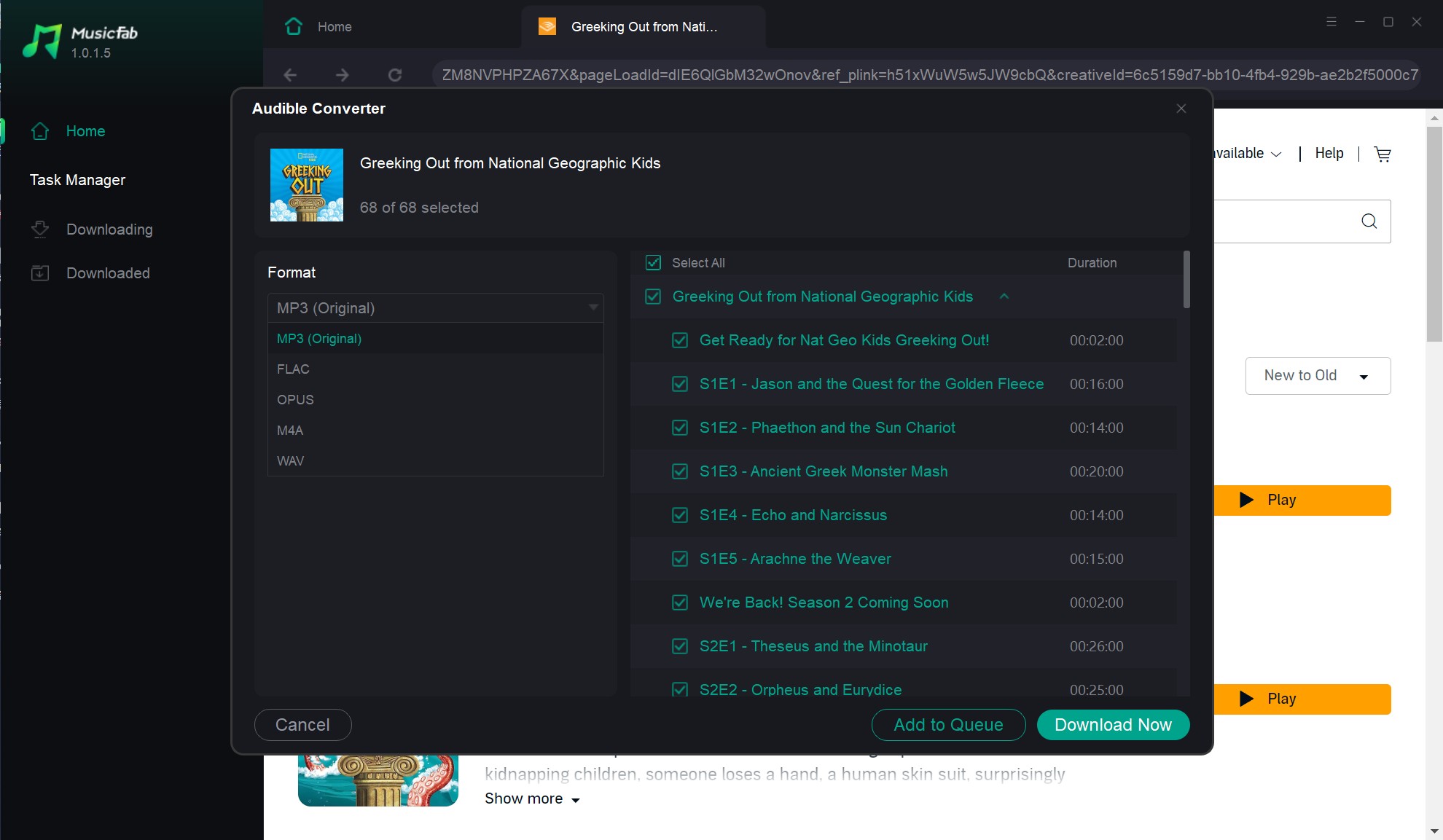
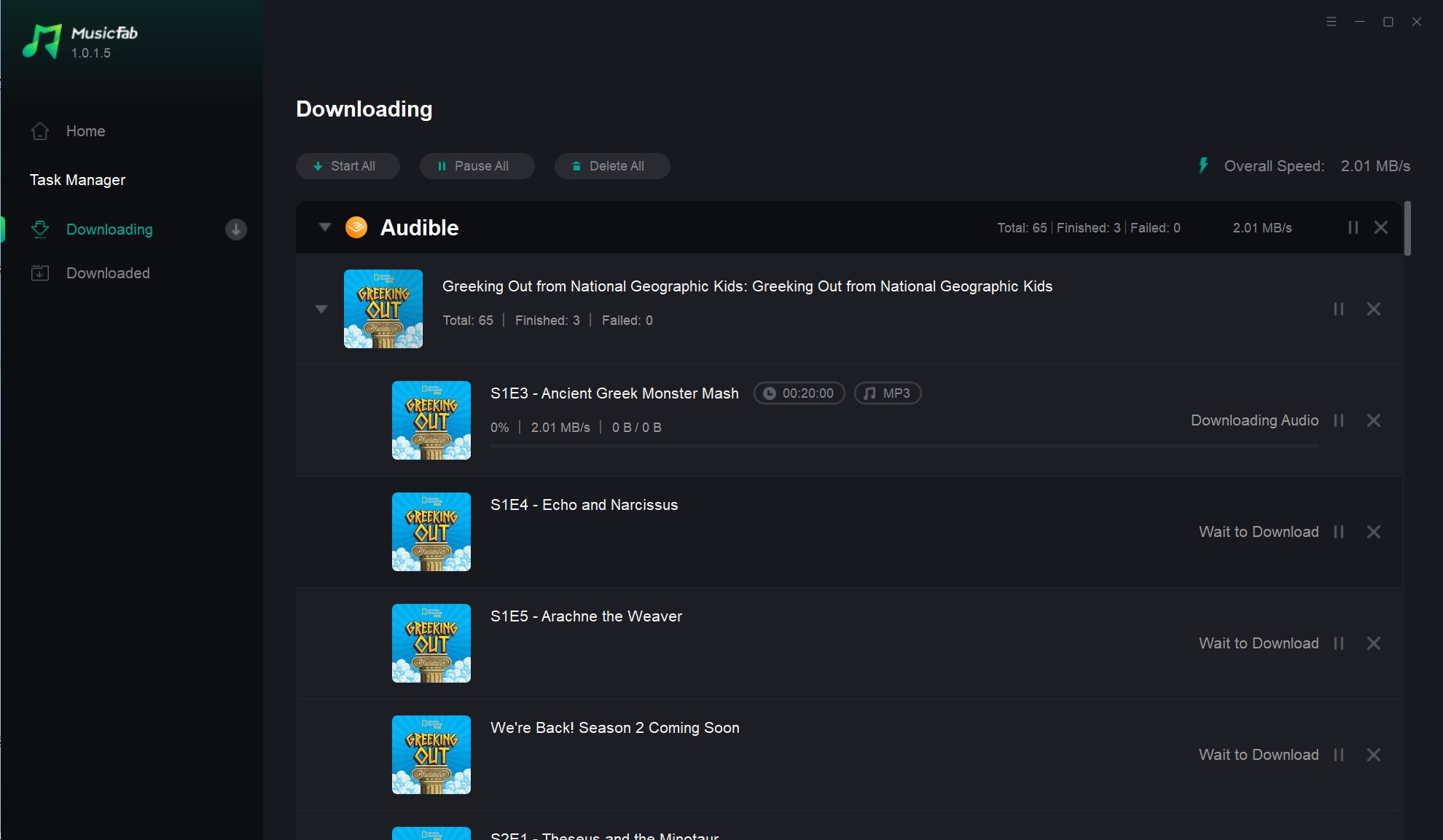
Step 3: Click the download button, and then MusicFab will automatically analyze all the music tracks. Pick an output format for conversion and select the audio quality. Click Download Now to begin the process.
Step 4: Check the downloading status of your files.
Free Trial: MusicFab provides a 30-day free trial to allow new users access to the full features and functionality. During the free trial period, MusicFab Audible Converter can download 3 songs.
Final Thoughts
Audible proves to be more than just an audiobook service; it delivers convenience and variety to bookworms and casual listeners. We have discovered answers to "Does Audible work offline" in a variety of ways for different devices. While each method caters to specific users, most prefer to settle for a professional-grade program, considering their limitations.
FAQs
Q.1. Does Audible work offline?
Yes. Audible works offline if you download titles to your device first. Purchased/owned titles can be listened to offline, while access to Plus Catalog titles depends on an active membership.
Q.2. How can I listen to Audible offline?
Use the Audible mobile app: Library → Download → play from the Downloaded section. For computers, follow Audible’s official download guidance and supported tools (availability can vary by region/device).
Q.3. Why can't I listen to Audible offline?
Audible titles must be purchased and downloaded first before being listened to offline. Some other reasons contributing to the problem include:
- Temporary glitches and bugs on the Audible app
- An underlying problem with the device's speakers
- Poor network settings
- Incomplete downloads
- Expired authorization of your Audible account

![10 Best YouTube to WAV Converters 2025 [Safe & Fast]](https://c.musicfab.org/uploads/images/2024-07/17206996344468865-25133daf28c92d3ac9abe86a67fddcf8.)
