

Discover how to maximize your Amazon Music experience with this comprehensive guide! From downloading the app on various devices to converting Amazon tracks into MP3 format, unlock all the tips, tools, and FAQs you need to enjoy high-quality audio streaming seamlessly.
In this guide, we'll walk you through step-by-step instructions on how to download songs from Amazon Music using third-party apps and official ways.
Can you download music from Amazon Music directly?
Well, yes. Amazon Music offers you access to offline download options for premium users. However, the download option is available only with restrictions, and that is why you may want to look for alternative options.
However, the default download option also comes with a few limitations.
The songs, podcasts, and other content that you download from Amazon Prime come with DRM protection. That would mean you cannot access the downloaded titles only on the app. It is not possible to transfer the downloaded music to another device and listen to it. Apart, if the downloaded music ceases to be on Prime Music for any reason, it will be removed from your downloads folder as well.
You will not be able to convert the downloaded music into an MP3 file format either. It will be available in a proprietary format that can only be recognized by the app.

1. How to Download Amazon Music to MP3 and Other Formats
1.1 MusicFab Amazon Music Converter

- Download music from Amazon Music at 20X faster speed.
- Convert Amazon Music to MP3/FLAC/WAV/M4A.
- Preserve Amazon Music with ID3 tags for easy management.
- Batch download Amazon Music songs, playlists, or albums.
- Keep the downloads permanently even after users cancel Amazon music subscription.
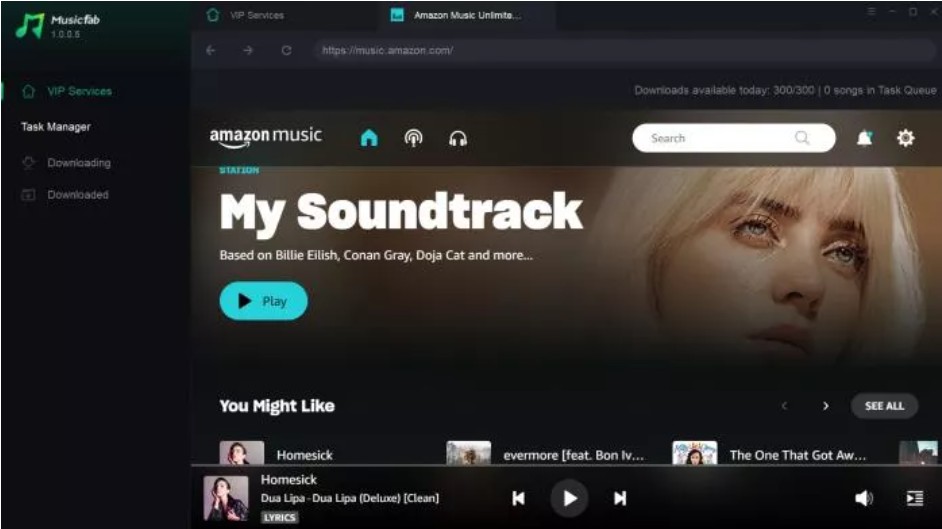
1.2 How to Download Amazon Music MP3 with MusicFab?
MusicFab Amazon Music Converter is available on both Win and Mac computers. Here we will take the Windows version as an example to show you how to use MusicFab to download Amazon Music songs offline. Please install this program on your computer before starting.


2. How to Download Songs from Amazon Music on PCs and Mobiles [Official Ways]
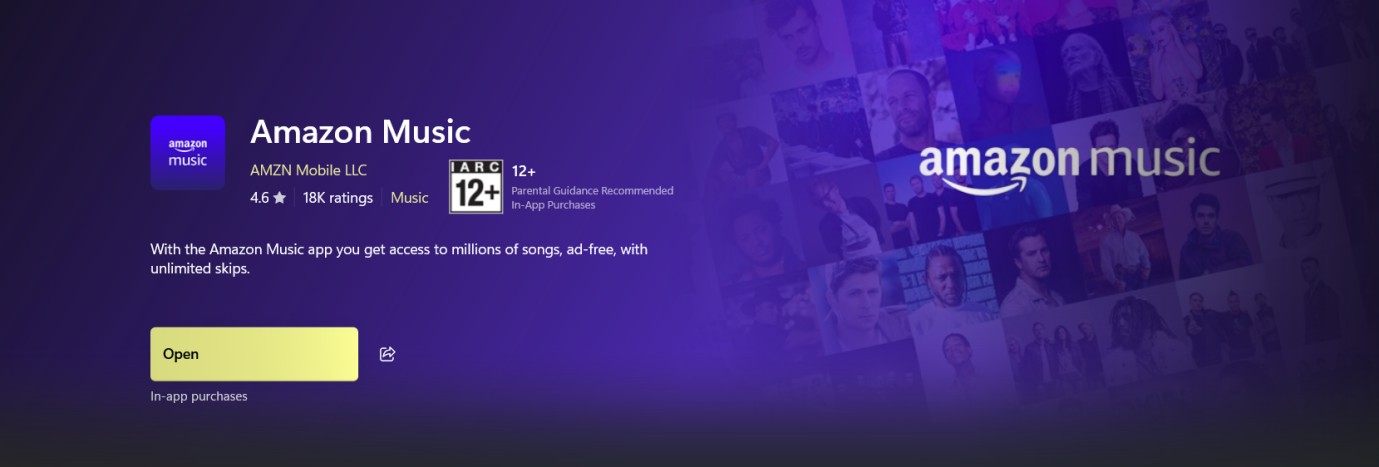
Installing the Amazon Music app on your device is quick and straightforward. Follow these steps to download and set up the Amazon Music app on Windows PC, Mac, iOS, and Android devices.
2.1 Download Amazon Music App on a Windows PC
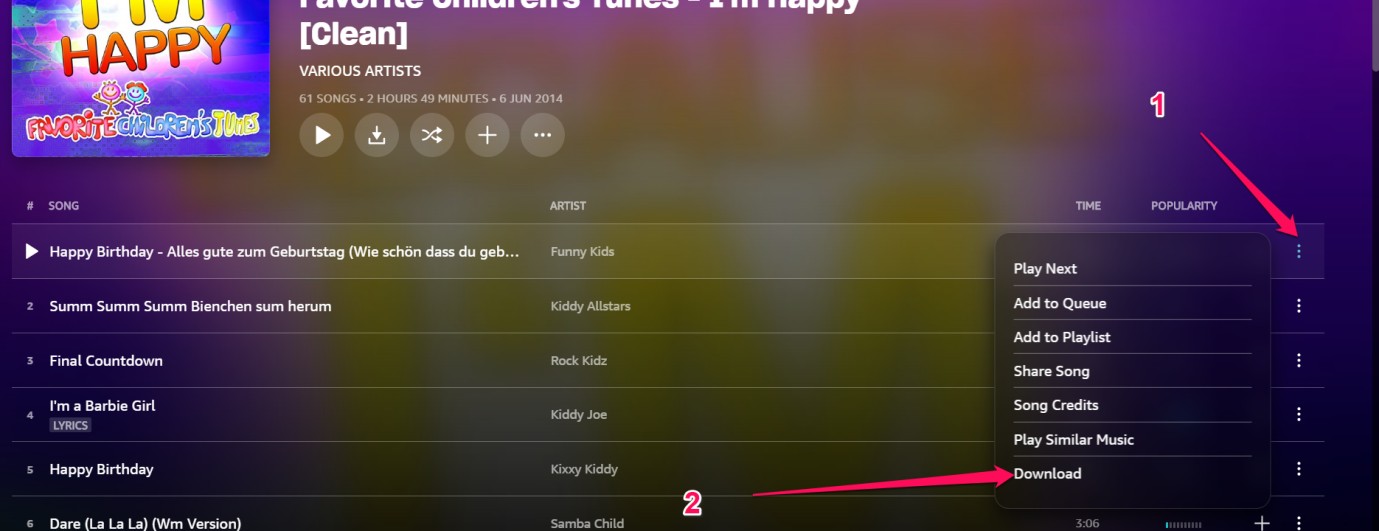
Once downloaded, the track should be available under Library > Music > Downloaded.
2.2 Download songs from Amazon Music App on Android
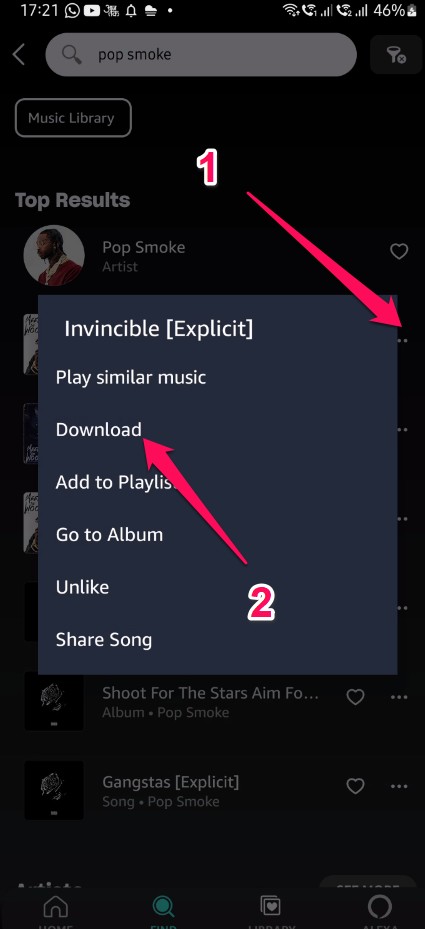
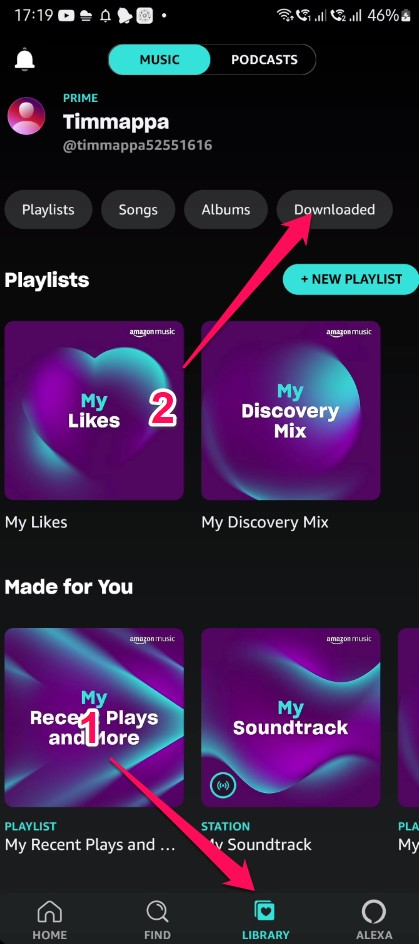
The availability and steps might differ slightly based on your location and the current status of the app in the respective app stores. Make sure to download the official Amazon Music app from trusted sources to ensure your security and the best user experience.
FAQs
Q1. How many songs can I download?
A1. There is no set limit for downloads as long as you have storage available on your device. However, some subscription plans limit how many downloads you can have offline simultaneously.
Q2. Can I use the app on multiple devices?
A2. Yes! Download Amazon Music on as many of your personal devices as you want. Just log into your Amazon account on each device.
Q3. What audio quality does the app use?
A3. Audio quality depends on your plan and the specific track. In Amazon’s terminology, “HD” is typically CD-quality (16-bit/44.1 kHz) and “Ultra HD” can go up to 24-bit with sample rates up to 192 kHz.
Q4. Does the app work offline?
A4. You can use the app offline by downloading songs, playlists or albums to your device storage for playback without an internet connection.
Q5. Can I upload my own music to the app?
A5. Yes, Amazon Music allows you to add up to 100,000 of your own songs to your account by uploading them from your computer. These will appear in “My Music.”
Q6. How do I get help with the app?
A6. Tap on your profile icon, Help & Feedback, and Contact Us to get assistance directly from Amazon's customer support team regarding any issues with the app.
Q7.How to Download Purchased Amazon Music to PC?
A7. If you have purchased a track on Amazon Music, you can look under the Songs or Albums section, and select the Purchased option. Then, click on More and you should find the download option.
Conclusion
Now that you know how to download Amazon Music App on your devices, enjoy its fantastic features, and also how to download Amazon Music to MP3 files. You're all set to dive into a world of music and entertainment tailored just for you!
Whether you're a music enthusiast or someone looking for the perfect soundtrack to accompany your day, Amazon Music has you covered. Start your musical journey today by downloading the app and exploring the extensive library it has to offer.

![10 Best YouTube to WAV Converters 2025 [Safe & Fast]](https://c.musicfab.org/uploads/images/2024-07/17206996344468865-25133daf28c92d3ac9abe86a67fddcf8.)
