

Care to know about how to download all songs on Apple Music? This article will provide you with different methods on various systems and devices, including official ways and thrid-party tools.
Are you worried about losing your Apple Music library when your subscription ends? You're not alone. While Apple Music allows you to download songs for offline listening, these files are in M4P (Protected AAC) format, meaning they are unplayable the moment you cancel your plan.
Official Way: How to download songs on Apple Music?
1. How to download a song on Apple Music?
Touch and hold the song you’ve added to your library, then tap the "Download" button. To always download music: go to "Settings" > "Music", and then turn on "Automatic Downloads". Afterward, songs you add to your library will be automatically downloaded to your iPhone.
2. How to Download All Songs on Apple Music?
Besides downloading a song, you can also download all songs in the Apple music library at once on iPhone. To do this you’ll need a PC or Mac.
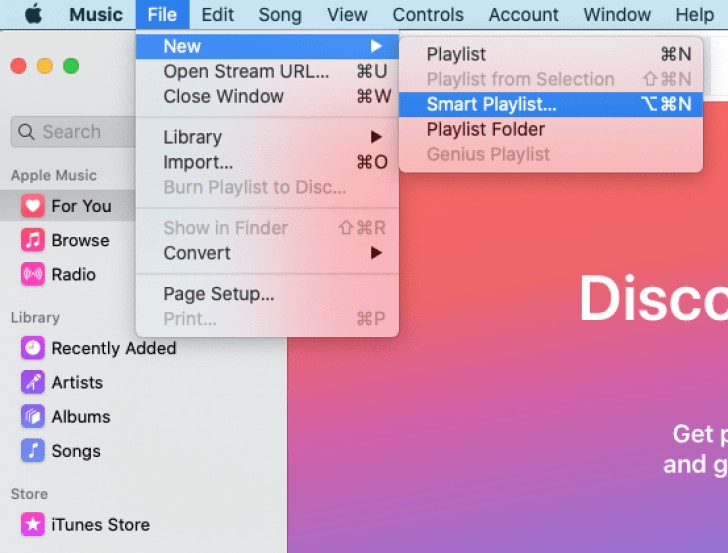
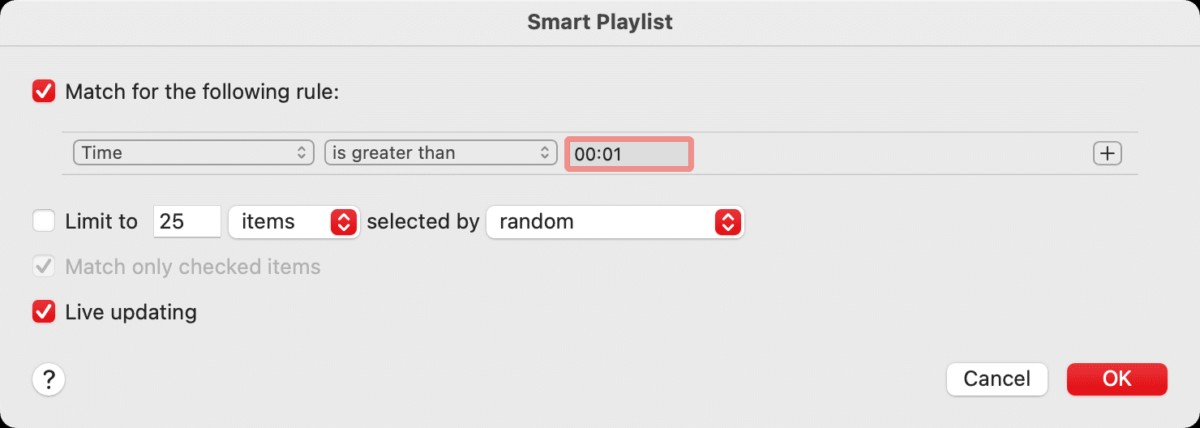
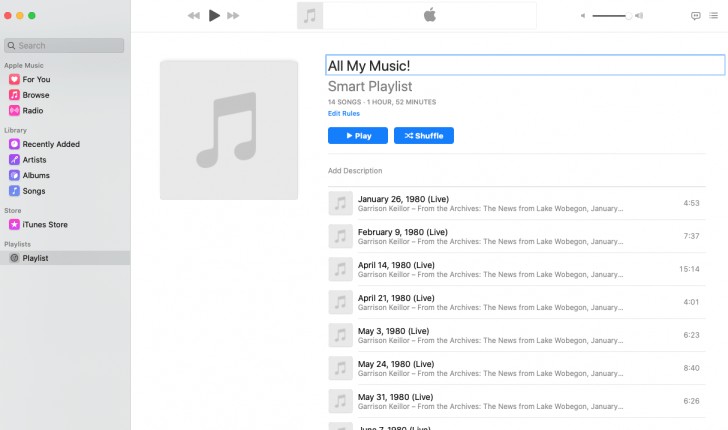
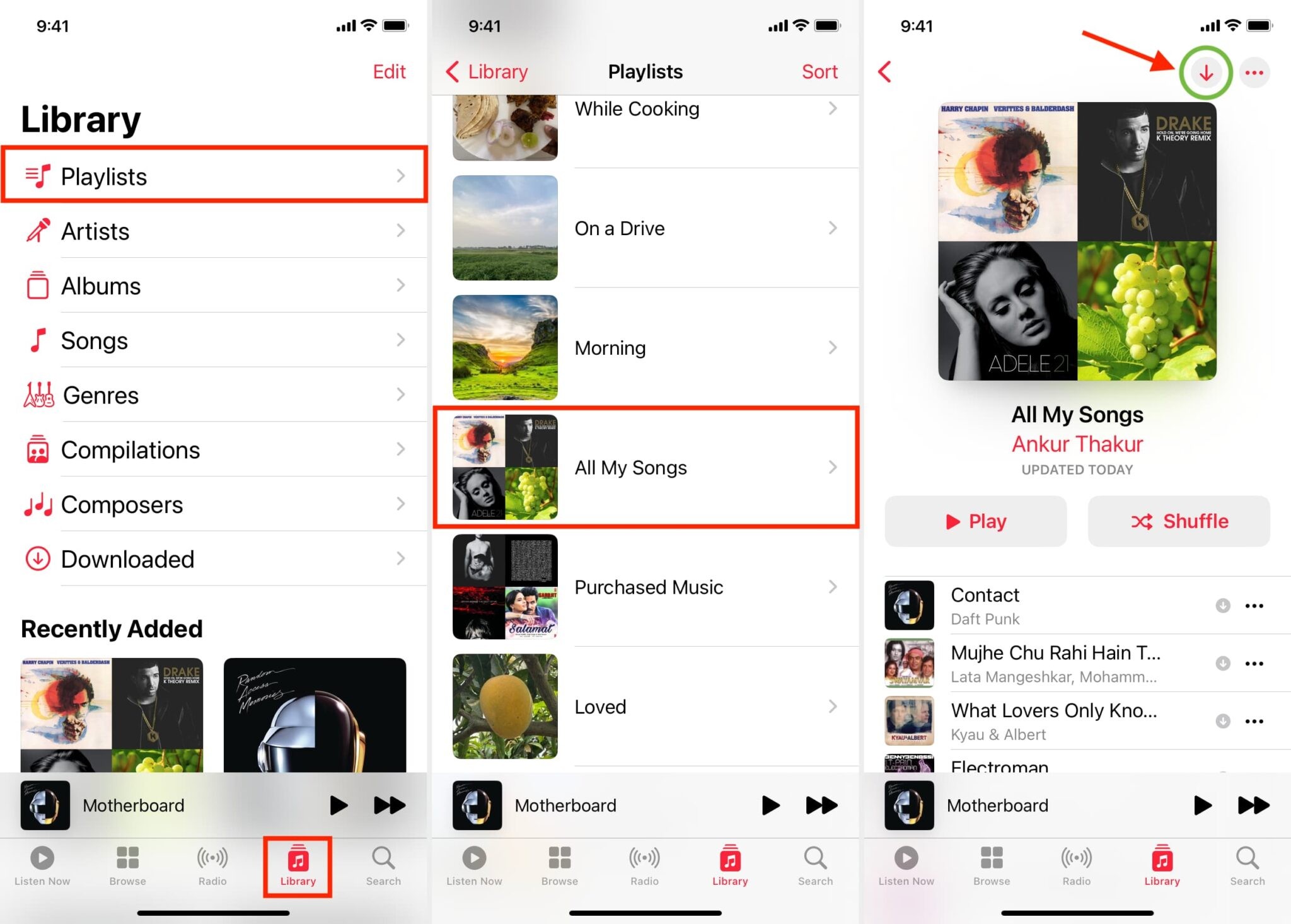
Third-Party Ways: How to download songs from Apple Music on Computer?
Disclaimer: The content downloaded and converted via third-party tools is strictly for personal, non-commercial use (e.g., backing up your own collection or transferring to another personal device). Downloading copyrighted material for redistribution, sharing, or commercial purposes is generally illegal and violates Apple's Terms of Service. MusicFab and this site do not endorse or encourage such activities. Always ensure your use of such tools complies with the copyright and digital media laws in your country or region.
MusicFab Apple Music Converter

- Save Apple Music songs as MP3,WAV,FLAC and more popular formats.
- Search and convert Apple Music to MP3 with Apple Music web player built-in.
- Retain ID3 tags and save lyrics as external .lrc files.
- Batch download at 20X faster speed.
For a detailed MusicFab review, kindly head to this post.
How to download music from Apple Music:
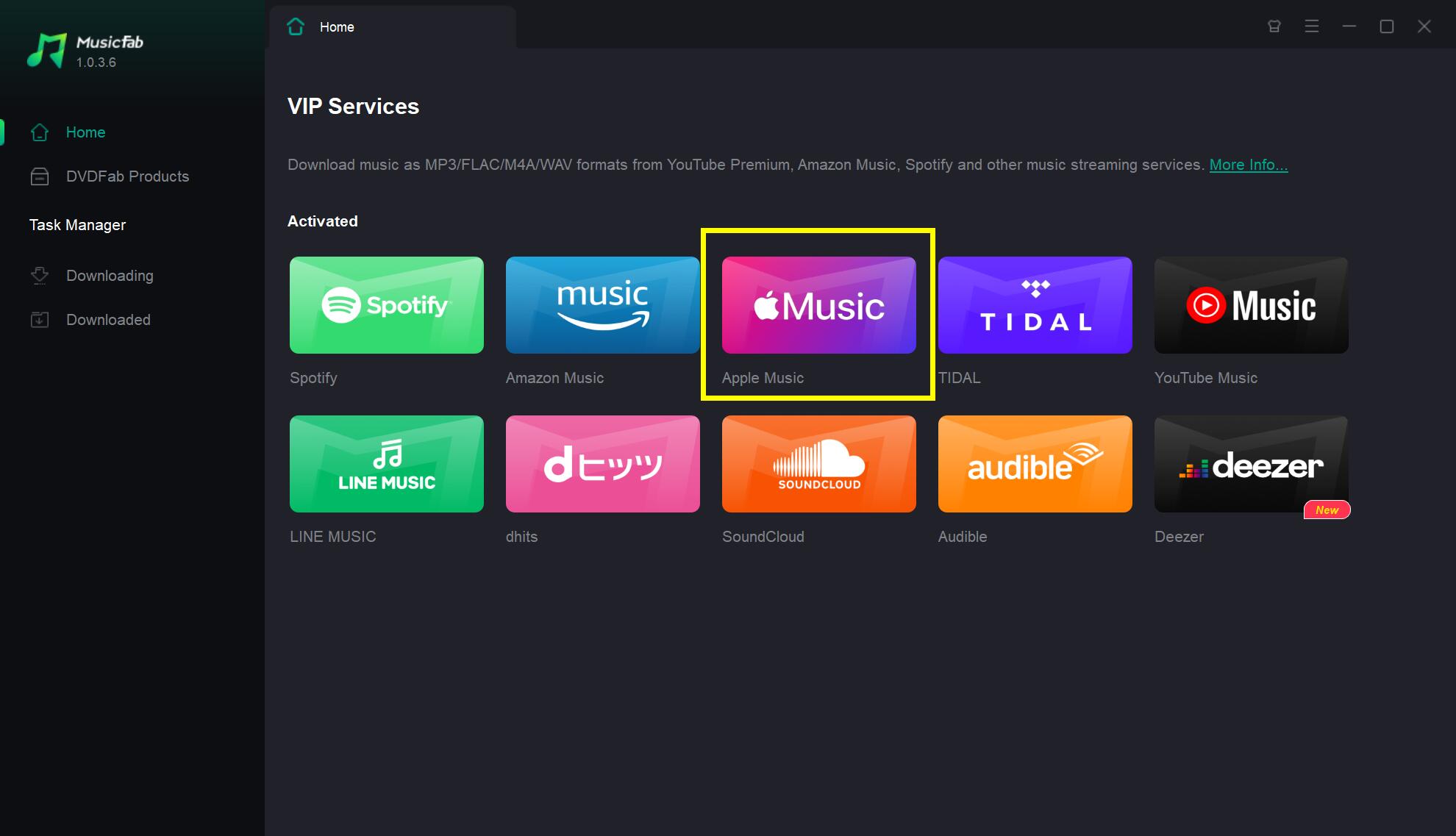
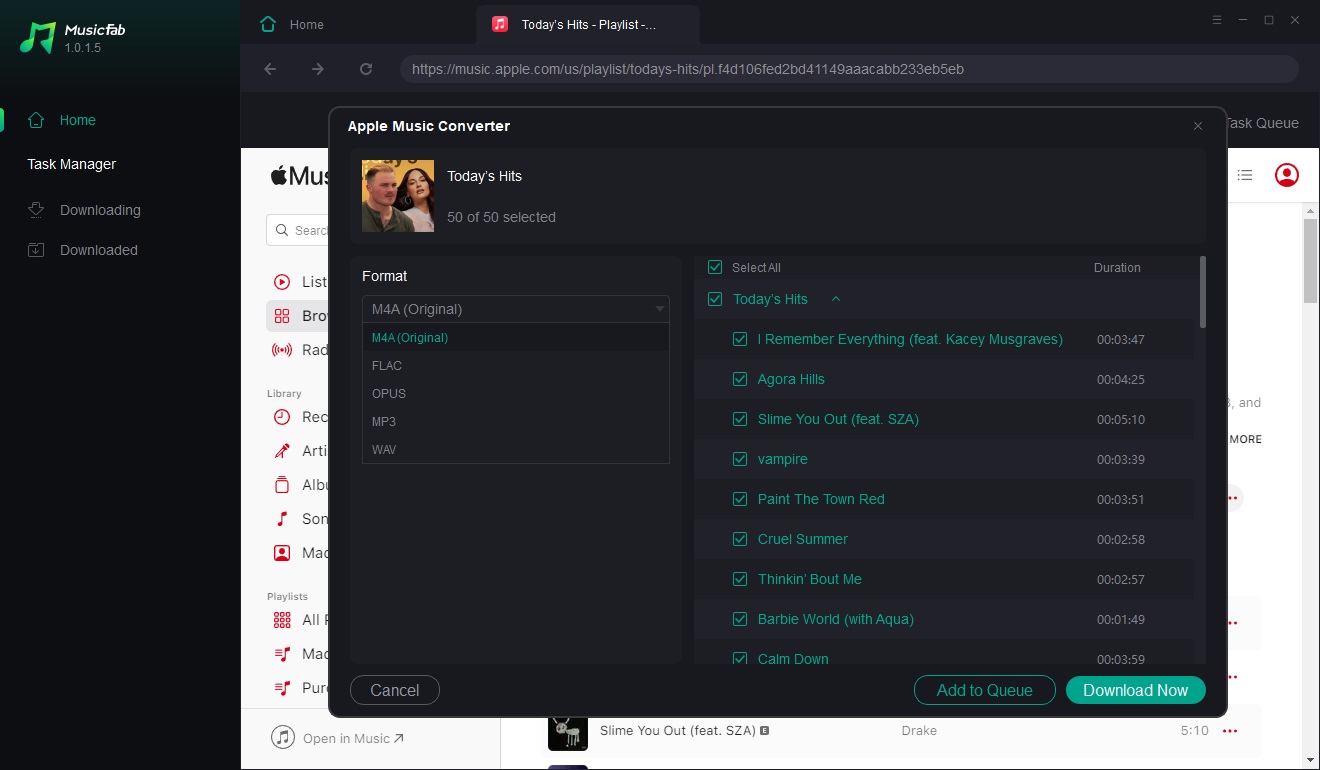
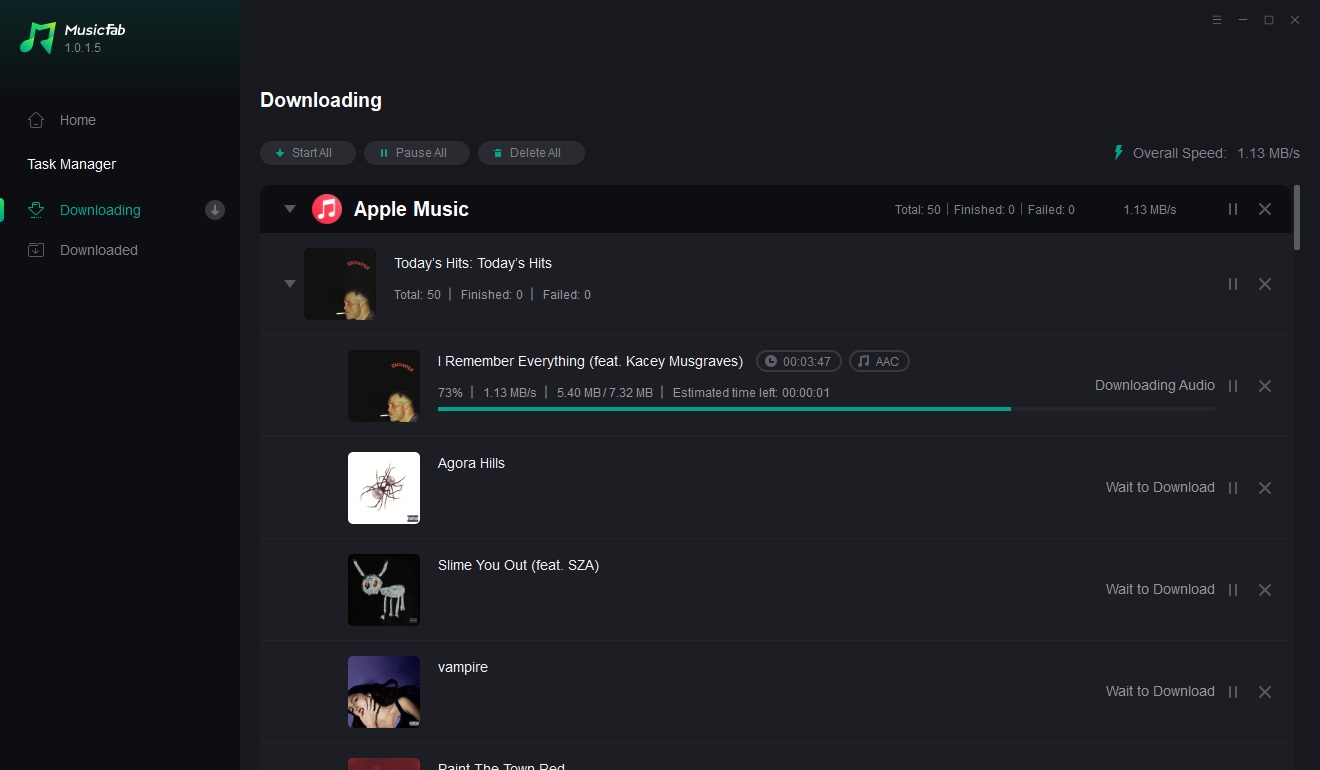
To learn about more PC-based tools that support Apple Music downloads, don't miss this How to Download Apple Music to PC.
Third-Party Ways: How to download songs from Apple Music on mobile phone?
on Android
Using Android Screen Recorder on Your Smartphone:
The Android Screen Recorder is a built-in screen recording app available on Android 11 and later. It records in MP4 format and can be easily accessed from the Quick Settings panel. Even though it's free, a big plus is that you can record as long as your storage and battery allow, with no limits. However, since you can't select the quality, it's not the highest resolution. You'll need another tool to convert the recording to MP3 if needed.
How to Download Apple Music as MP3 on Android?
Step 1: Launch the Quick Settings panel and tap "Screen Record."
Step 2: Start recording and then open Apple Music to play your tunes.
Step 3: When the music finishes, stop the screen recording.
Step 4: The file will be saved as an MP4 in your file app; convert it to MP3 if necessary.
on iPhone
Apart from the official download method provided by Apple, currently, no iPhone app supports downloading music from Apple Music. Therefore, the recommended option here is online tools. They are not limited by the type of device or system used. As long as the browser supports it, they will work.
How to Batch Download Apple Music Playlists online with APLMate?
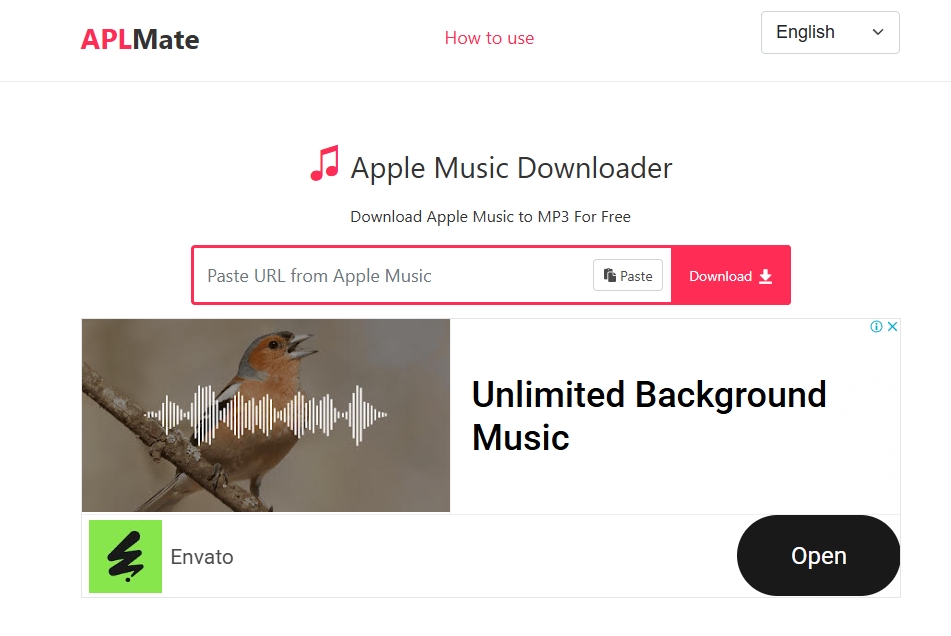
Step 1: Copy the link of the album or playlist you want to save from Apple Music by selecting "Share."
Step 2: Paste the copied link into the input field on APLMate and click the download button.
Step 3: Choose the desired MP3 quality and download the Apple Music playlist in MP3 format all at once.

![10 Best YouTube to WAV Converters 2025 [Safe & Fast]](https://c.musicfab.org/uploads/images/2024-07/17206996344468865-25133daf28c92d3ac9abe86a67fddcf8.)
