
MusicFab Apple Music Converter

1. Download music, playlists, or albums from Apple Music in batch;
2. Save lyrics as external .Irc files and keep IDs tags;
3. Convert Apple Music from protected M4A to other popular formats like FLAC/MP3/WAV

Free Download

100% Safe & Clean

How to Set Apple Music Sleep Timer?

While Apple Music has a large library and provides a flawless listening experience, it shockingly lacks a built-in sleep timer.

This feature is essential for anyone who enjoys falling asleep while listening to their favorite music. Fortunately, there are practical alternatives for setting a sleep timer so this can be a solution for the time being.

Let's look at how to improve your listening experience by establishing a Apple Music sleep timer on various devices.
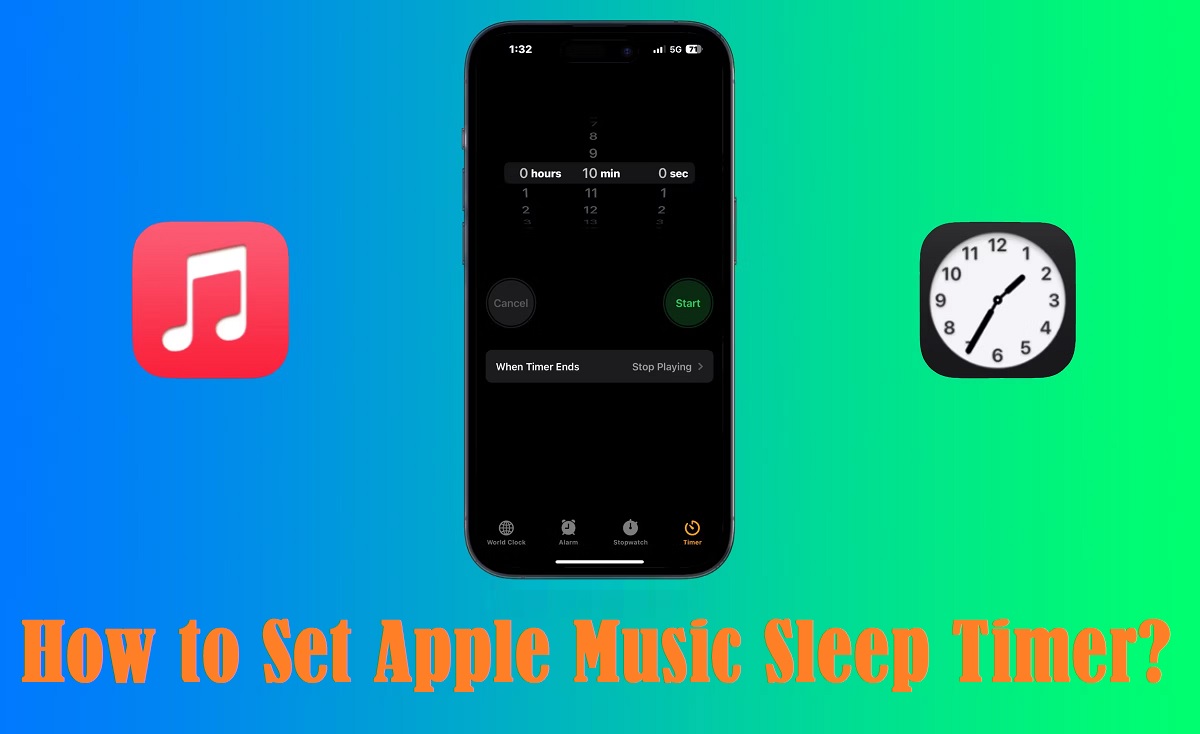
How to Set Apple Music Sleep Timer?

Section 1: Can We Set Sleep Timer Apple Music?

Having music playing in the background while you drift off to sleep is a very relaxing experience. There is a vast selection of music available on Apple Music, which is said to be somewhere in around 100 million tracks.

Additionally, there are some fantastic playlists that are designed to assist individuals in falling asleep or, at the very least, relaxing. In fact, Apple Music has a whole category that is dedicated to this topic, which is called Apple Music Sleep Edit.

However, having music playing throughout the night when you do not want it to is not soothing at all. Therefore, the majority of music streaming services now come equipped with a Sleep Timer feature, which allows you to customize the time at which the service will cease playing music automatically.

This is good for battery life as it stops music from playing all night to save battery, for you as user to ensure uninterrupted sleep and your listening pleasure without manually pausing the song.

Apple Music still doesn’t offer a dedicated “Sleep Timer” button inside the iPhone/iPad Music app. However, you can achieve the same result using Apple’s built-in Clock timer: set a countdown and choose “Stop Playing” when the timer ends. This stops audio automatically and works with Apple Music as well as most other media apps. On Android, Apple Music includes a built-in Sleep Timer option inside the app, while desktop platforms usually rely on system sleep settings or automation.
Can We Set Sleep Timer Apple Music?

It is odd that Apple Music does not come with a built-in sleep timer, despite the fact that it has a massive collection and provides a flawless listening experience. Those individuals who take pleasure in drifting off to their favorite music will find this feature to be indispensable. However, there is still some way around to overcome this and you still can set Apple Music sleep timer.

There are, fortunately, efficient workarounds that may be utilized to establish an Apple Music sleep timer. But rather of having it in the Apple Music app, you need to use one of the other features that they offer for iOS. Read on and check how to set Apple Music sleep timer on a variety of devices.

Section 2: How to Set a Sleep Timer Apple Music on iPhone or iPad?

There are a few ways to set up sleep timer Apple music on the iPhone, check them out.

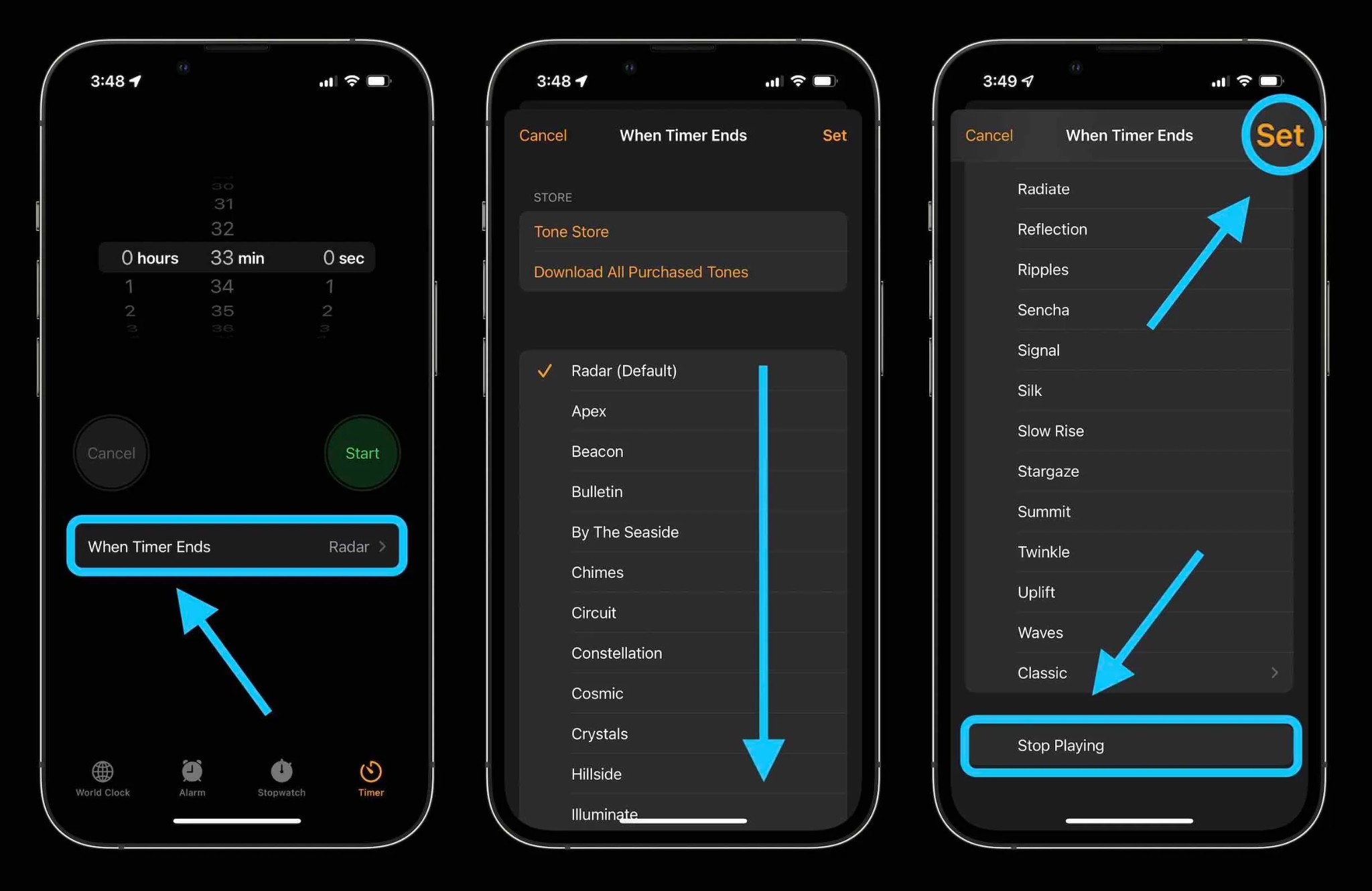
2.1 Using the "Clock" app

A flexible Clock app that doubles as an Apple Music sleep timer is pre-installed on Apple's iOS devices.

Here's how to make use of it:
Step 1:
Find and launch the "Clock" app on your mobile device.
Step 2:
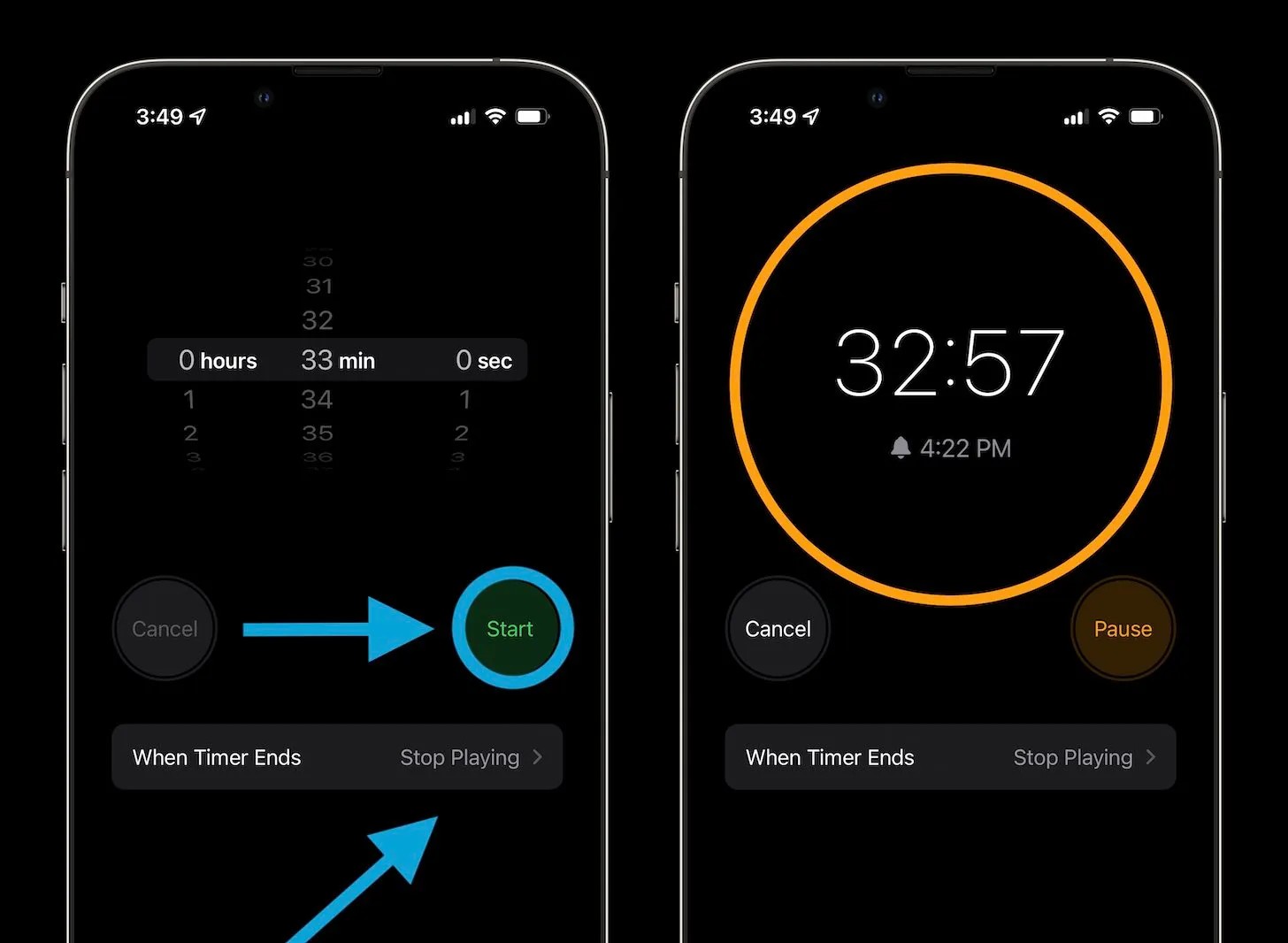
Find and tap the "Timer" tab, which is situated in the lower right corner of the screen, to access the timer.
Step 3:
Set up your Timer by choosing the length of time you want, then press "When Timer Ends."
Step 4:
Select "Stop Playing" by scrolling to the bottom of the list of options.

Select Stop Playing
Step 5:
Press 'Set' to validate your selection.
Step 6:
After that, press the 'Start' button to activate your sleep timer. When the countdown runs out, the music will immediately stop playing.

'Start' button to activate your sleep timer
Step 7:
If you want to make some changes to the timer for example to stop or end the timer, just go back to the "Timer" screen and make the necessary changes.

This built-in approach is compatible with various music streaming providers and doesn't require any third-party apps.

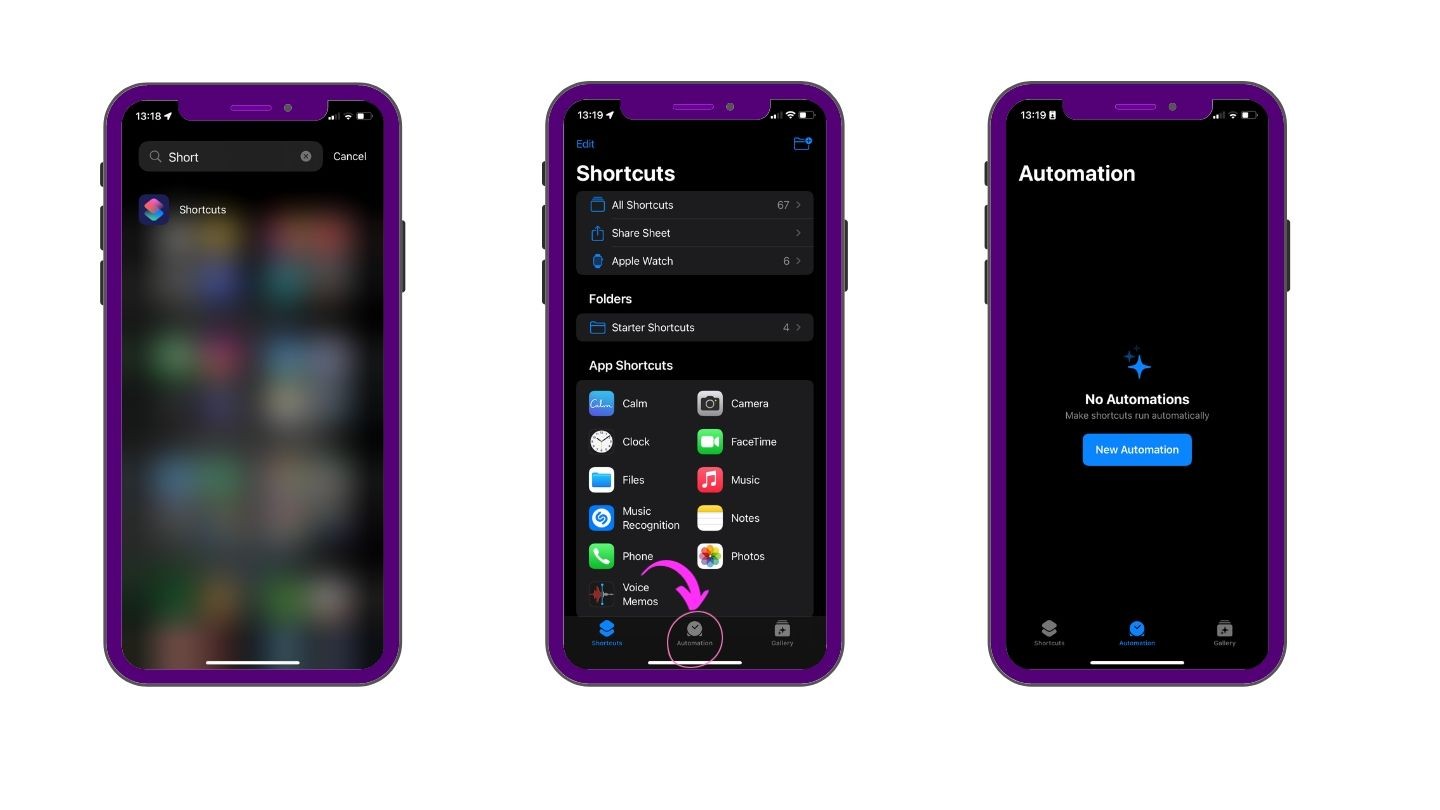
2.2 Using the "Shortcuts" option

The Shortcuts menu allows you to program your phone to do certain tasks at certain times or in response to certain triggers.

Learn how to create a shortcut for Apple Music sleep timer here:
Step 1:
Find the "Shortcuts" app.
Step 2:
Launch the app and go to the "Automation" section.
Step 3:
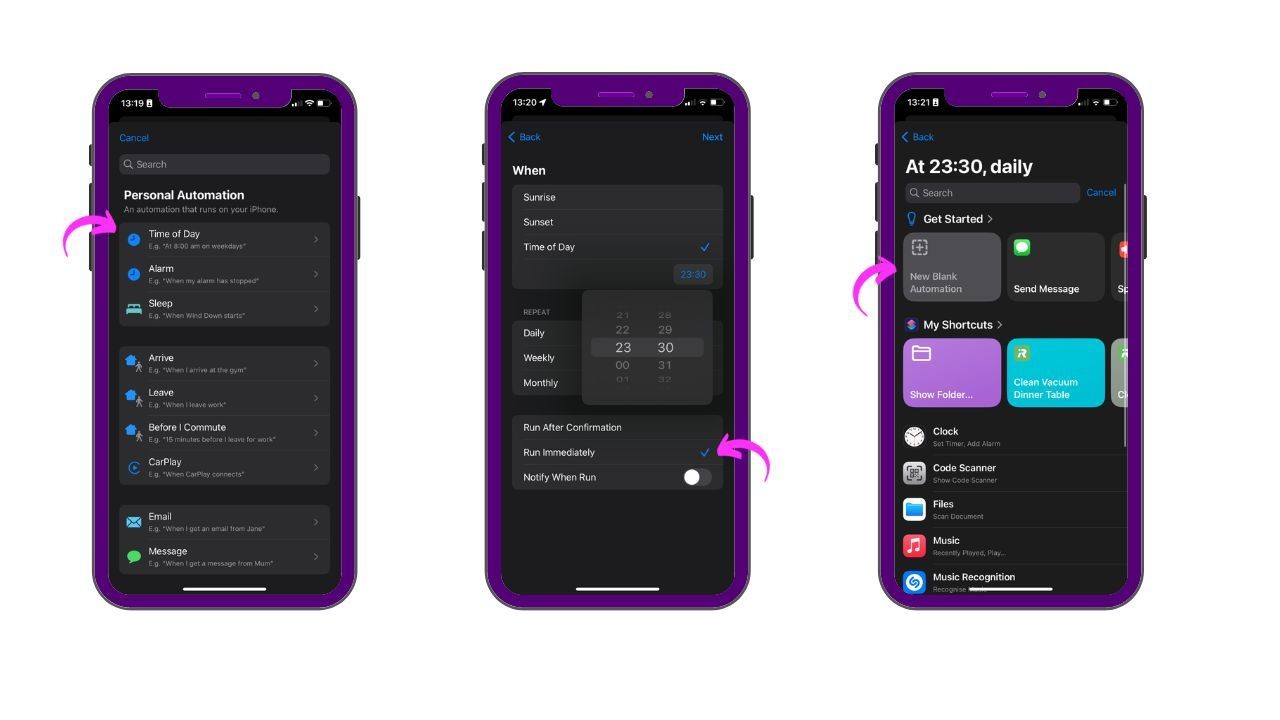
Next, choose either "New Automation" or the "+" icon, whichever is applicable based on the number of existing automations.

+ icon
Step 4:
Find the "Time of Day" option and choose the time you want the music to end. It defaults to daily, but you may change it to weekly if you prefer.
Step 5:
Make sure to choose "Run Immediately" to ensure that the Shortcut runs automatically moving forward.
Step 6:
After that, select "New Blank Automation".

select New Blank Automation
Step 7:
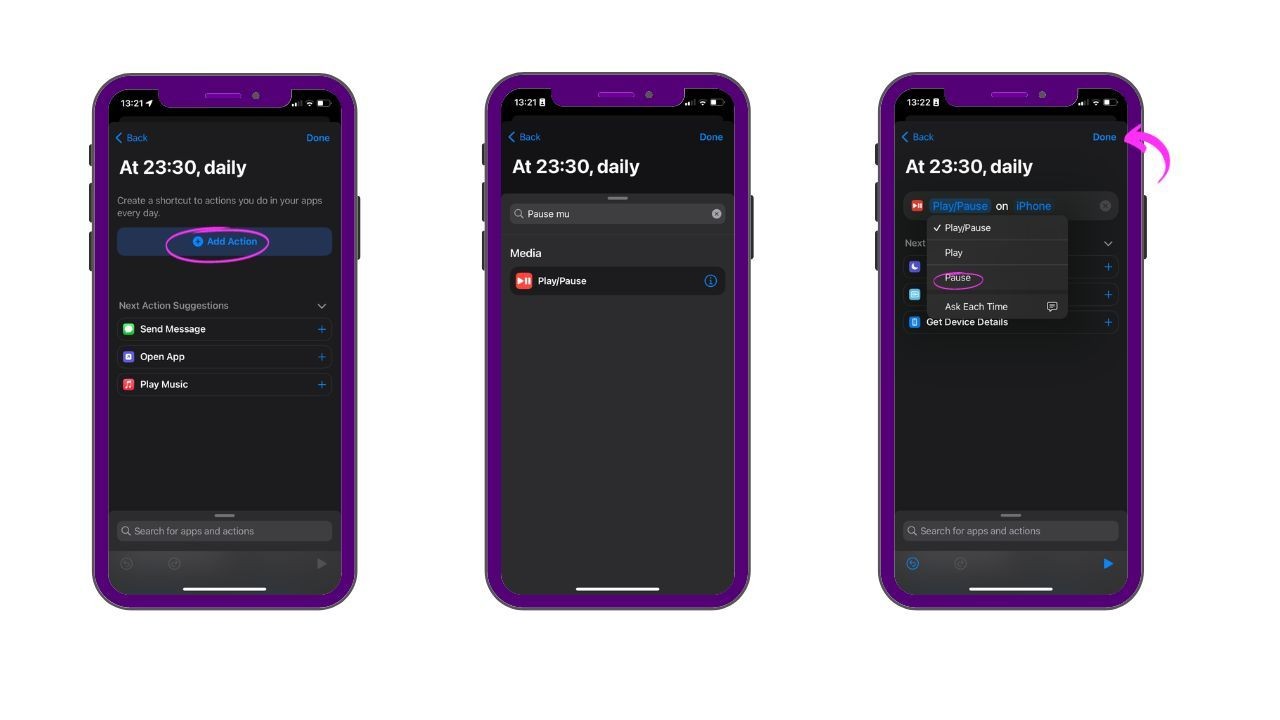
Tap on "Add Action".
Step 8:
Find Play/Pause by typing it into the search field; then, click on "Play/Pause".
Step 9:
Next, choose "Pause" by tapping the "Play/Pause" button.
Step 10:
To finish setting up your Apple Music Sleep Timer, just click the "Done" button on the top right coner of the screen.

Done button on the top right

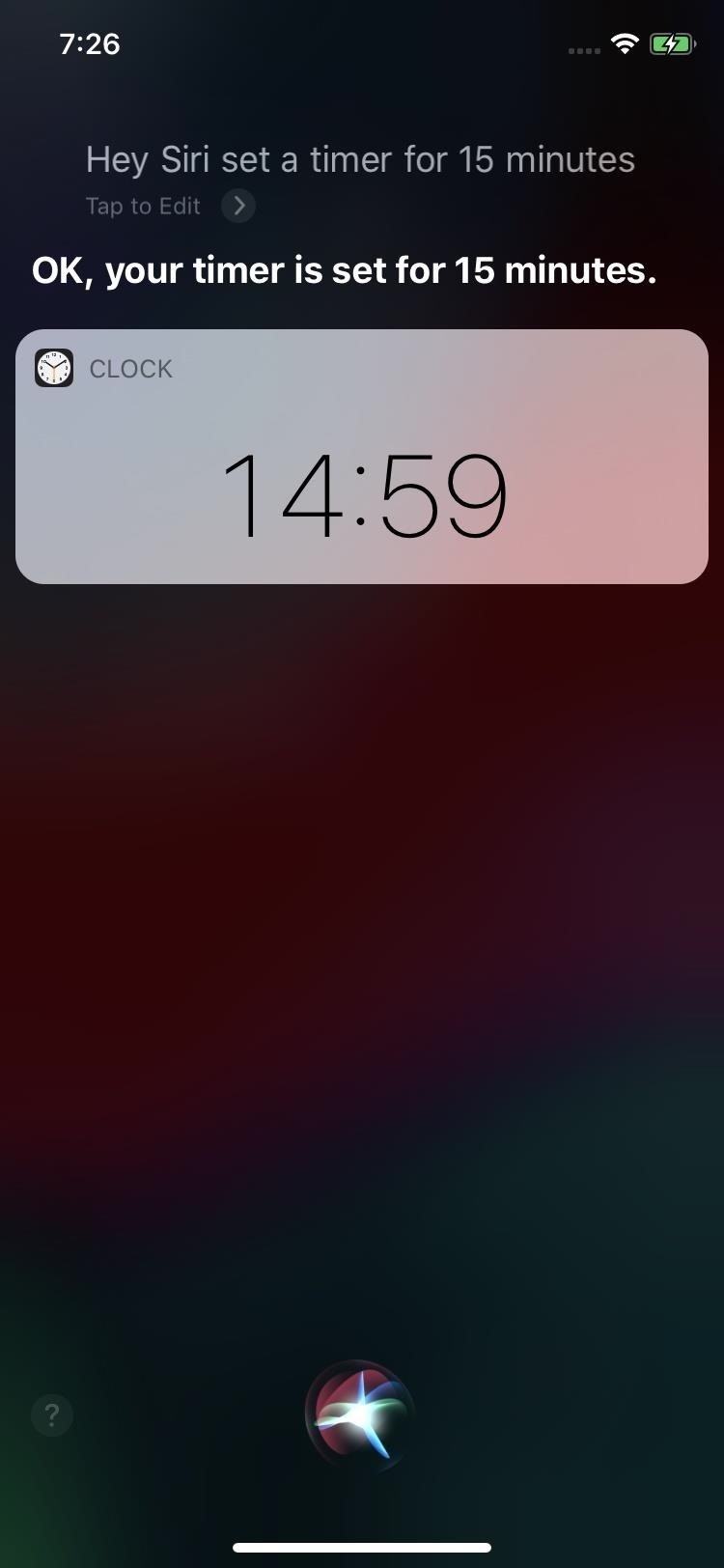
2.3 Use Siri (Voice Recognition)

Siri can also be used to assist you if you don't want to be bound to a schedule.

Here are the steps to set sleep timer Apple Music using Siri:
Step 1:
Simply say "Hey Siri, stop playing music in one hour" to Siri to activate the AI.
Step 2:
All you need to do is wait for Siri to confirm.

wait for Siri to confirm

Section 3: How to Set a Sleep Timer Apple Music on Android?

Currently, Apple Music's beta version allows users to set a sleep timer on Android devices.

Here's how to activate it:
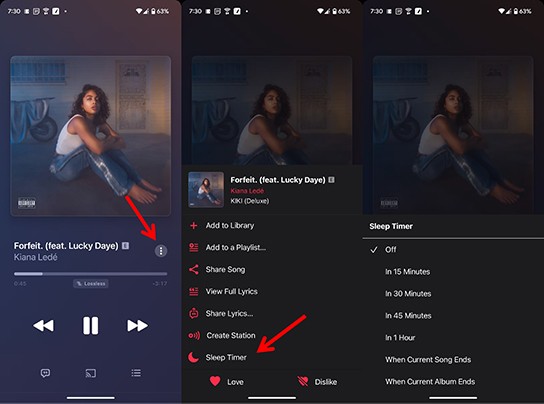
Step 1:
Play a Song: To access the music playback interface, open Apple Music and begin playing a song.
Step 2:
To use the sleep timer, tap the menu with three vertical dots and choose "Sleep Timer".
Step 3:
Set Your Timer: Select from predefined intervals of 15, 30, or even the entirety of the song or album that is now playing.
Step 4:
Turn Off the Timer: To turn off the sleep timer, just go back to the settings and choose "Off".

Turn off the sleep timer

It is anticipated that this feature will soon be available in the stable version of the app, improving accessibility for all Android users.

Section 4: How to Set a Sleep Timer Apple Music on Mac?

Mac users can also change the energy settings on their device to have a restful night's sleep while listening to music.

Here is how to set Apple Music sleep timer on Mac:
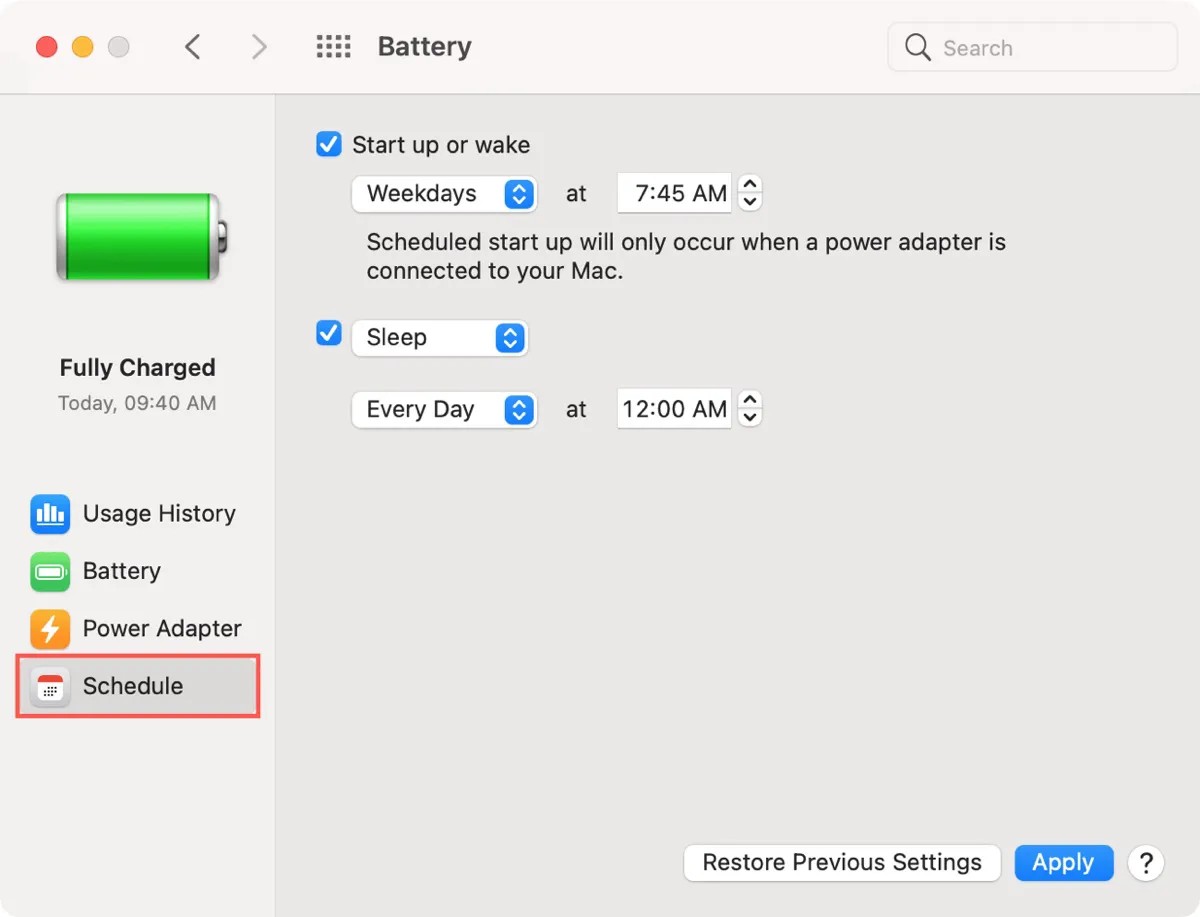
Step 1:
Select "System Preferences" from the menu after clicking the Apple icon.
Step 2:
Navigate to Battery Settings. Locate and select "Battery".
Step 3:
Modify Sleep Settings: Select a desired time for sleep by checking the box next to "Sleep". To confirm, click "OK".

Select a desired time for sleep

This technique makes sure your Mac doesn't play music all night long by using the sleep feature of the operating system to halt music playback.

Section 5: How to Set a Sleep Timer Apple Music on Windows?

Using the power settings on Windows, one can set a sleep timer in a similar way:
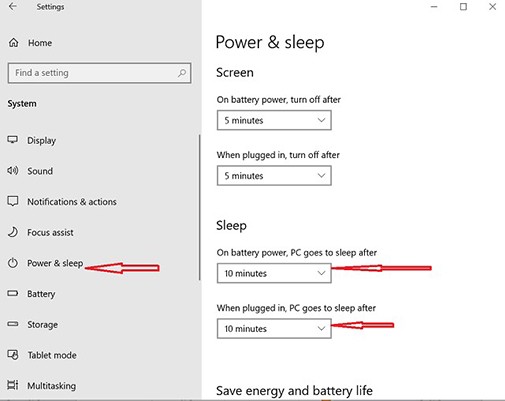
Step 1:
Getting to Settings: Click on "Settings" from the Start menu.
Step 2:
Getting to Power & Sleep: Select "System" and then "Power & Sleep".
Step 3:
Configure the Sleep Timer: Choose and modify the duration of time the computer should remain awake while playing music.

Power & Sleep

After the predetermined time, this configuration will make sure your PC goes to sleep, automatically ending Apple Music playback.

FAQs

Does Apple music have a sleep timer on iPhone?

The Apple Music app on iPhone doesn’t include a dedicated sleep timer button, but you can use the Clock app instead. Set a Timer, tap “When Timer Ends,” choose “Stop Playing,” and start the timer—your music will stop automatically.

Wrap Up

In spite of the fact that the Apple Music app does not come equipped with a sleep timer by default, these alternatives offer dependable solutions for users, regardless of the platform they are using. These solutions allow listeners to enjoy music while they go to sleep without draining their batteries or playing music throughout the night.

You can also download music from Apple Music and listen to songs from your device storage by using MusicFab Apple Music Converter. This way, you can listen to songs without having to open Apple Music and still use the sleep timer feature. It's worth a try.

POPULAR LATEST
MusicFab Review 2026: A Detail Guide for Beginners
10 Best YouTube to WAV Converters 2025 [Safe & Fast]
5 Free&Paid Tools to Convert Amazon Music to MP3 2025
Top 8 Online SoundCloud to MP3 Converters 2025 [Free & Paid]
2025's Proven Top Spotify Downloaders for PC [Win & Mac]
2025 Top 15 Online&Desktop Spotify Downloaders [Win & Mac]
2025 Best 8 Free Spotify Playlist Downloaders Online,Desktop,Mobile
7 Tools to Convert Apple Music to MP3 Online & Desktop 2025
Can You Change Spotify Username? How to Do It?
Best Spotify MP3 Converters: Top Picks for Windows, Online, and Mobile
Can You Listen to Audible Offline in 2026? Here’s How it Works!
How to Listen to Pandora Offline (2026): Plus vs Premium, Downloads & Fixes
Can You Listen To Amazon Music Offline?
Sidify Music Converter Review: Is It the Right Choice for You?
Top 7 Tidal Music to MP3 Converters for Windows and Mac Users
Guide to Spotify Offline Mode Not Working & Plus a Permanent Fix!
Youtube Music vs Spotify Sound Quality: Who Wins?
How to Rip Audio from YouTube on Windows & Mac: Fast, Simple
Apowersoft Review (2026): ApowerREC, Online Recorder, Pricing & Best Alternatives
How to Pre-Save on Spotify (2026): Countdown Pages, Links & Tips
How to Download the Amazon Music Audio for Offline Listening
2026 ViWizard Spotify Music Converter Review & Alternative
TuneFab Review: Pros, Cons,User FeedBack & Alternative 2026
How to Download SpotifyPodcast to MP3 via 6 Ways 2026
How to Download Amazon Music to Your Phone
Learn More Show Less

TRENDING

See More

Try MusicFab for Free

  • Download music/podcasts/audiobooks.
  • Output MP3/M4A/FLAC/WAV/OPUS files.
  • Keep the downloads permanently.
Start My Free Trial

100% Safe & Clean